Spaces
Spaces for community work
Organize community work into Spaces, Subspaces and Activities. Keep conversations, documents, goals and meetings together, with shared guidance for members and personal navigation between your communities.
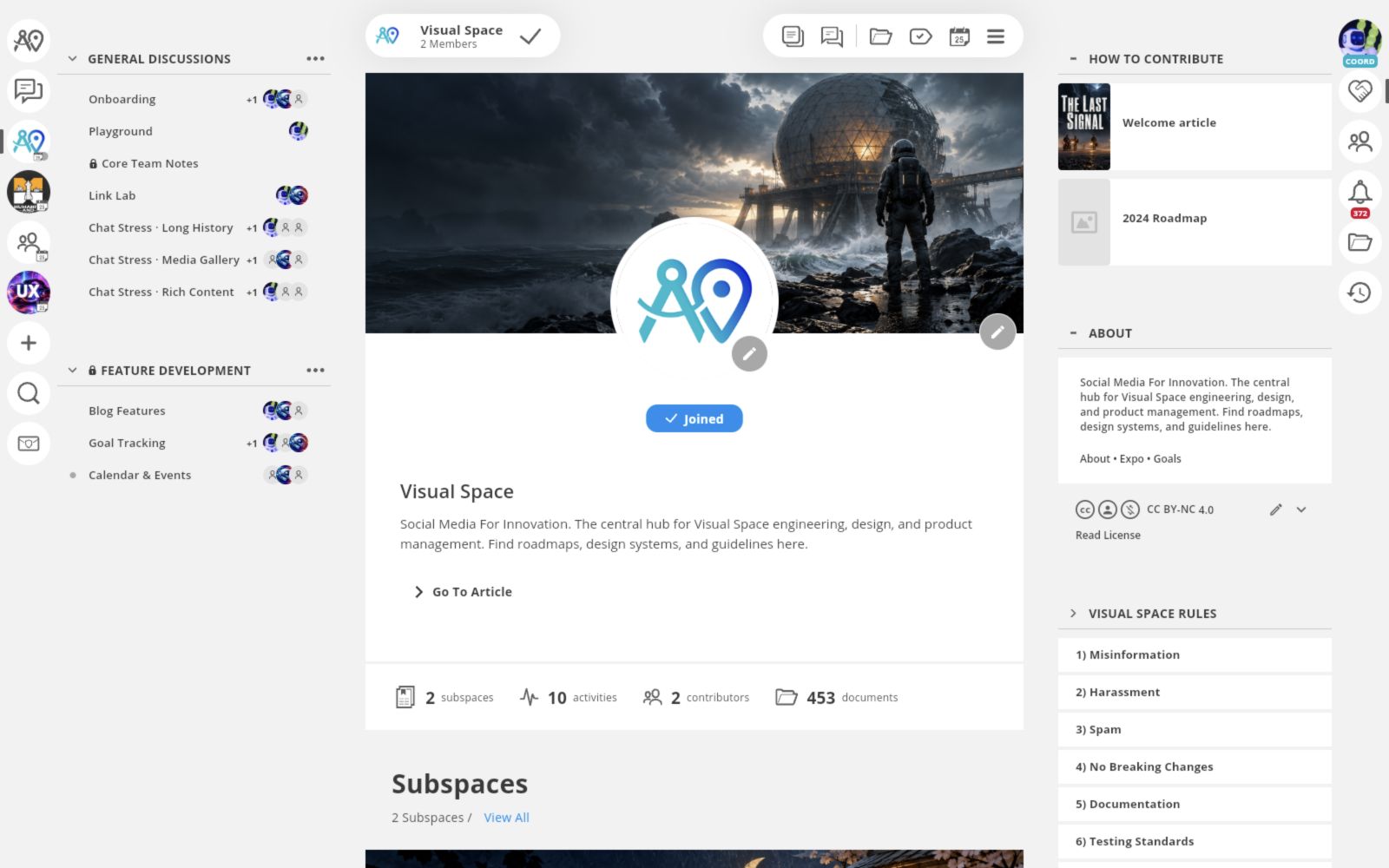
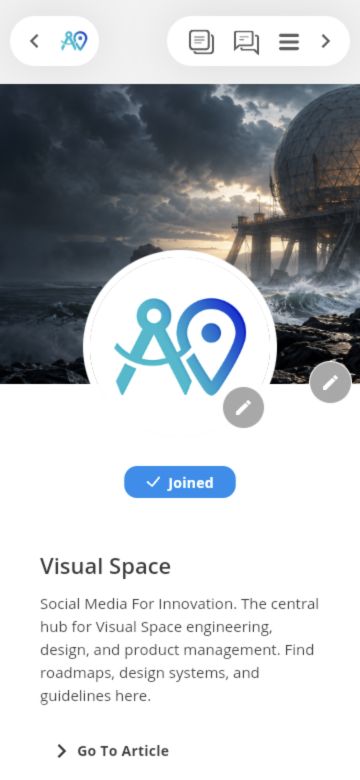

Spaces, Subspaces and Activities
Organize your community into Spaces, Subspaces and Activities. Each Activity gives a focused effort a home for its chat, documents, meetings, goals and events. The same map follows you across apps, so related work stays connected as your community grows.
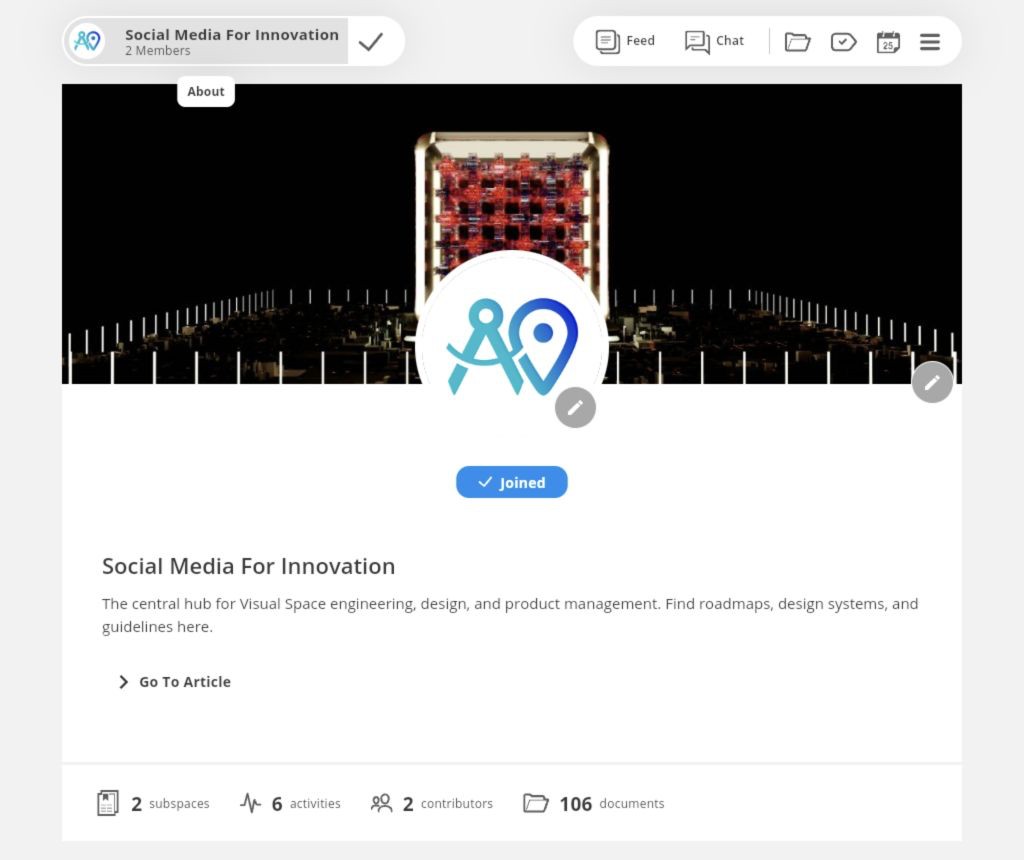
About, Space Pins and useful links
About explains the community’s purpose and links to its longer introduction. Space Pins highlight up to ten published posts or articles in a chosen order; each card opens the original work. The Links section provides named external resources with short descriptions, such as a project website or source repository.
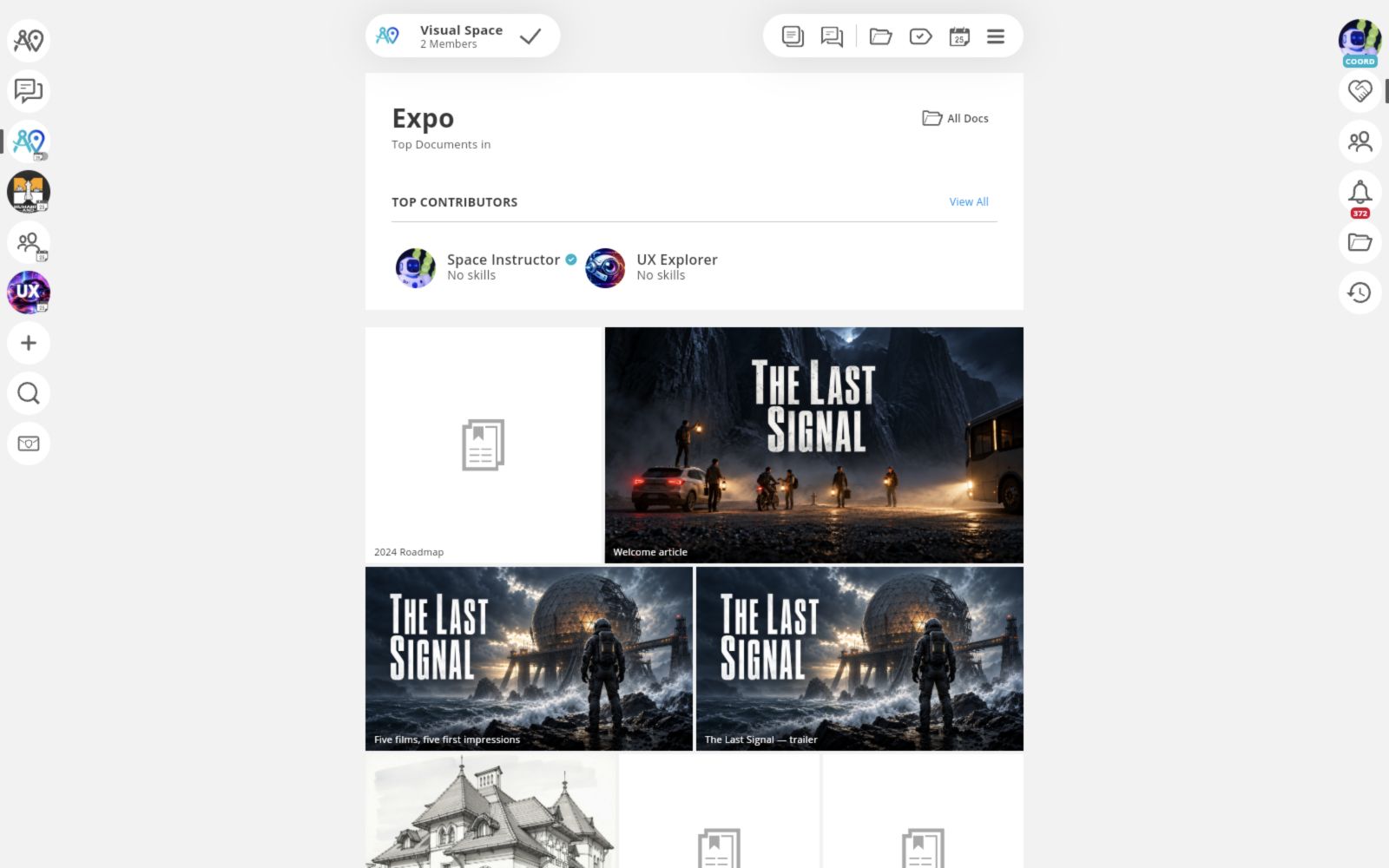
Expo showcases
Expo brings selected posts, articles, events, goals and documents into a visual showcase. Highlights from an Activity roll up into its Subspace and Space, and each tile opens the original work. Your curated selection stays connected to the wider Documents library and to the people who made it.
Members, staff and community rules
Public Spaces support direct joining; private Spaces use invitations. Local rules explain the community’s expectations, while listed staff help members find the people responsible for guidance and moderation. Owners and scoped roles determine actual authority; a visible staff badge does not grant permissions by itself.
-
Membership invitations
Invite an existing user or an email recipient, then follow the invitation through acceptance into joined membership.
-
Public and private access
Set public or private visibility before publishing. Private Subspaces and Activities keep focused work within its chosen audience.
-
Roles and staff
Create responsibilities that fit your community, with capabilities scoped to the Space or a particular area. Entry and management authority stay separate.
Quick access to your joined Spaces
Keep the Spaces you return to near the top of your personal left rail. Drag joined Space avatars to reorder them, or drop one onto another to make a collapsible folder. Expand a folder to reopen a community and rearrange its members. This personal arrangement is separate from Space Pins, which highlight posts and articles for everyone in a community.
Spaces manual
Read the guides and step-by-step tutorials for more detail.
Browse the full manual →