Goals
Goals, assignments and project boards
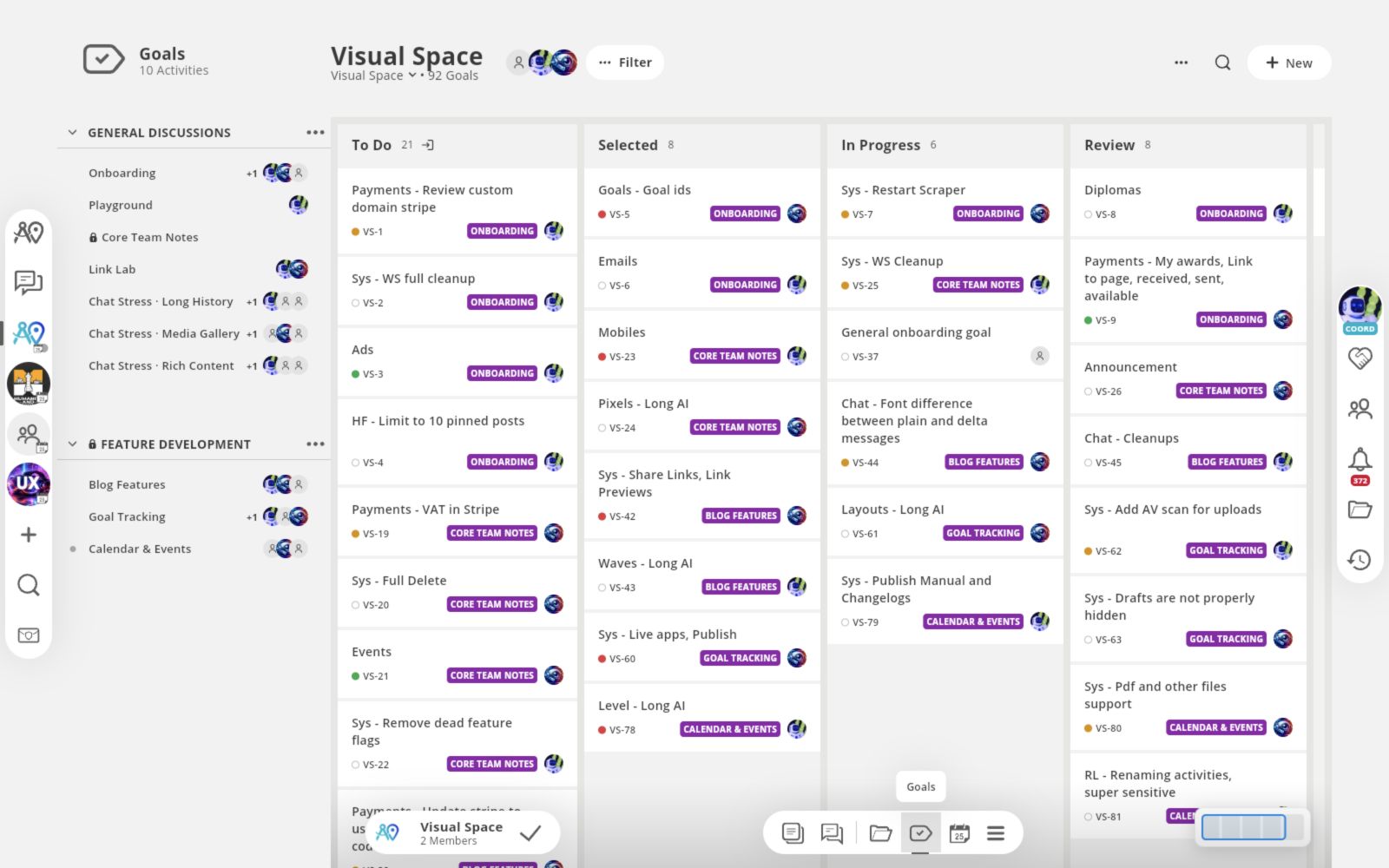
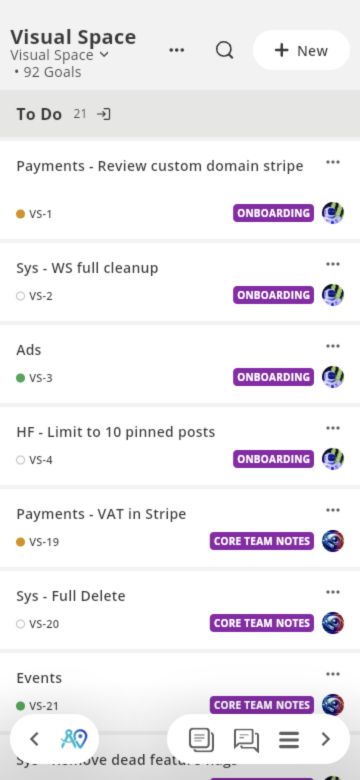
Turn community ideas into useful work. Goals brings a flexible board, clear responsibility and the discussion behind each objective into your space and activities.
Goal descriptions and discussion
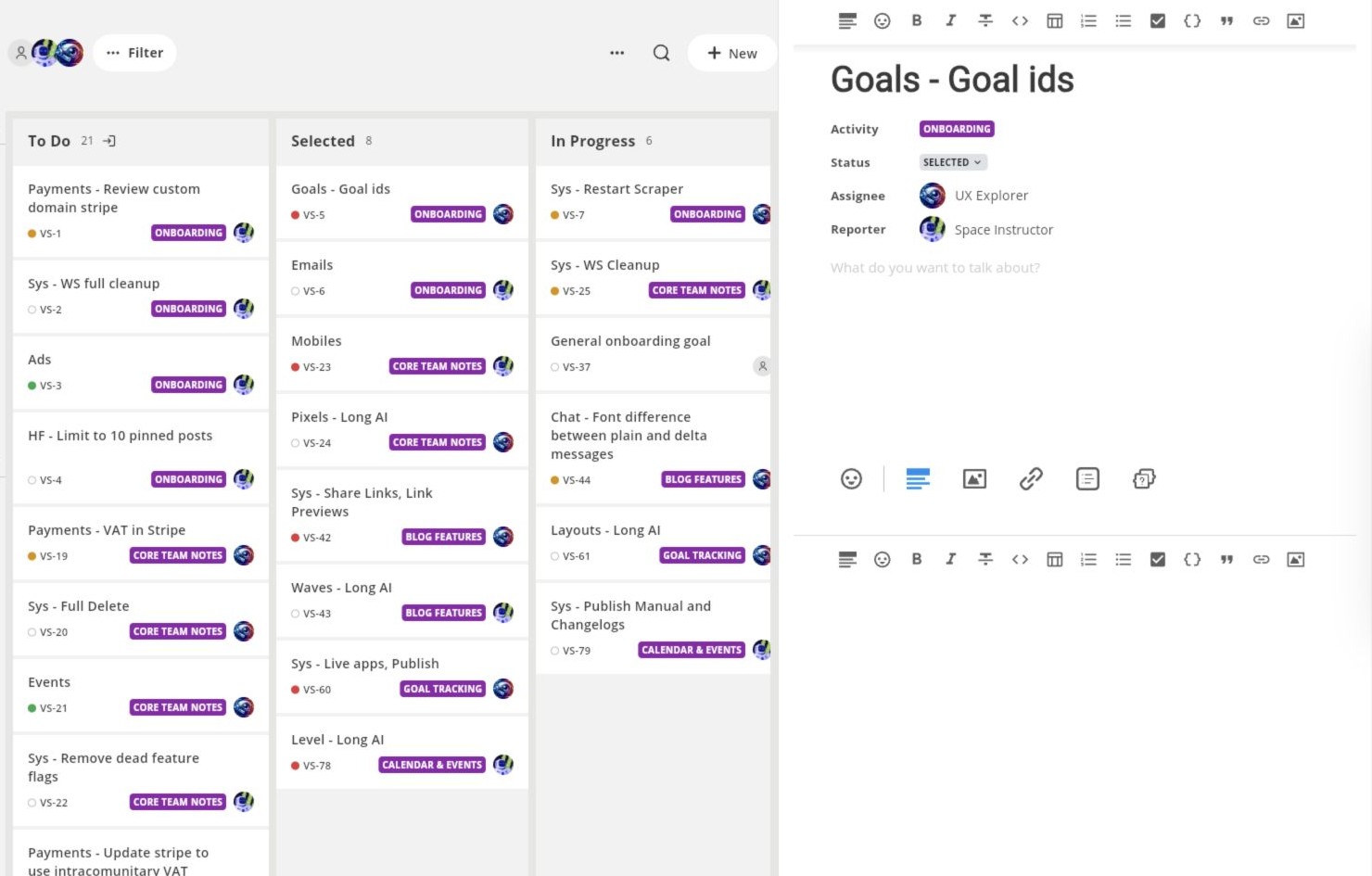
Every goal has an article for its purpose, supporting material and discussion. Open it beside the board to understand the work without losing your place, search or filters. The short card helps people scan; the article gives them enough context to contribute.
Assign people or Space roles
Assign a goal to one person or a space role, or leave it Unassigned while you find the right contributor. Combine responsibility and color-tag filters to focus on the work that needs attention, while keeping the wider plan available.

-
Role assignments
Current members of an assigned role can edit and move its goal as the team changes.
-
Responsibility and tag filters
Assignee and color filters keep dragging available, so you can organize the relevant work in place.
Custom columns, backlog and completed work
Shape the columns around your workflow, from To Do to Review to Done. Goals keeps current work, future ideas and completed history connected without making the active board carry everything at once.
-
Active board
Move cards through named stages that fit the way your group works.
-
Backlog
Paused or future work retains its article, discussion and prepared status for a return to the board.
-
Completed history
Clear a Done column into completed history, preserving its goal articles for review or reopening.
Reference goals in Chat
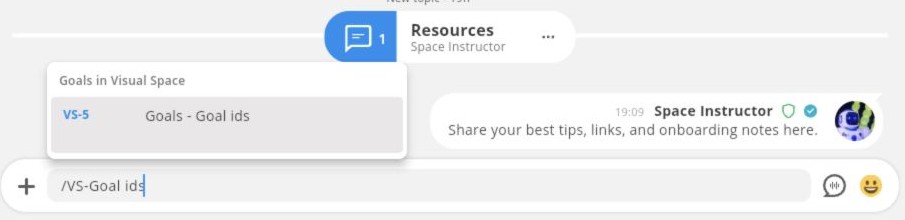
Use /goal in Chat to choose an accessible goal and insert a connected reference. People can open the objective you mean, and selected references keep following it after a space-key change or move. The discussion and the plan have a route back to each other.
Activity boards and Space-wide views
Keep goals in the activity where their conversations and documents belong, then use the space-wide board to see accessible work across activities. Moving a goal within the space keeps its article and discussion attached, so organizing the plan does not mean starting the context again.
Goals manual
Read the guides and step-by-step tutorials for more detail.
Browse the full manual →