Spaces Admin
Space administration
Welcome members, share responsibility and organize access around the way your community works. Space Settings brings the people, rules and capacity of your shared space into focus.

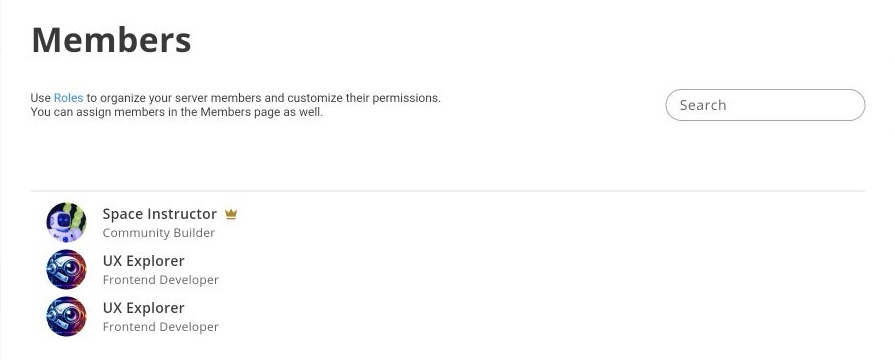
Member invitations and membership
Find an existing Visual Space user or send an email invitation. Track the sender, recipient, status and expiry in Invites, then browse accepted members with search and role grouping. An invitation becomes membership when the recipient accepts, keeping the welcome clear on both sides.
Roles and scoped permissions
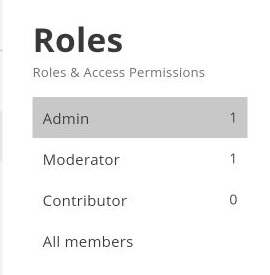
Create locally named roles for the work people actually do. A host can manage Events, a coordinator can organize Goals, and a moderator can steward content. Capabilities can follow the Space, a Subspace or an Activity, with local choices to inherit, allow or deny.
-
Role names
Use a role your community understands and enable the capabilities it needs.
-
Space and area scope
Fit authority to the relevant Space, Subspace or Activity rather than granting it everywhere.
-
Member assignments
Select joined members. Change or remove their role as responsibilities evolve.
Private Space and Activity access
A private Space, Subspace or Activity has its own entry boundary. Owners manage access at the protecting area, inviting people into a private root Space or adding existing Space members to a nested private area. Entry and authority stay separate: someone can join the discussion without receiving management powers.

-
Private-area membership
A private parent protects its children, so access can follow the structure of the work.
-
Management permissions
Roles define what an admitted member may do after entering the protected area.
Rules, links and pinned posts
Bring local rules, useful links and current published work together in the Space panel. Keep lasting orientation in About, pin posts and articles that need attention now, and use Expo for the work you want to showcase over time. Guidance connects to the actual work members can open.
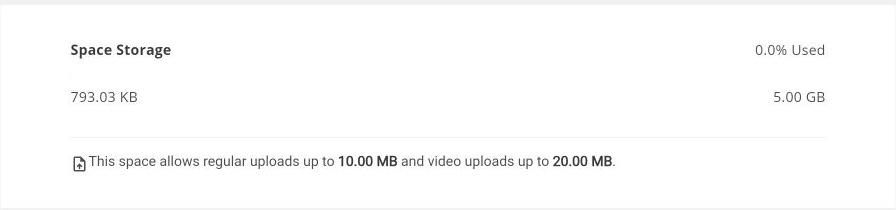
Storage and upload limits
Space Storage shows used and total capacity alongside ordinary and video upload limits. Assigned Boosts provide the context behind the Space’s current capacity. Managers can see whether a file needs more available room or a different per-file limit before adding it to the shared work.
Spaces Admin manual
Read the guides and step-by-step tutorials for more detail.
Browse the full manual →