Profiles
Profiles, published work and recognition
Introduce yourself, share what you create and let community recognition tell part of your story. Your profile connects the person behind the work with the work itself.
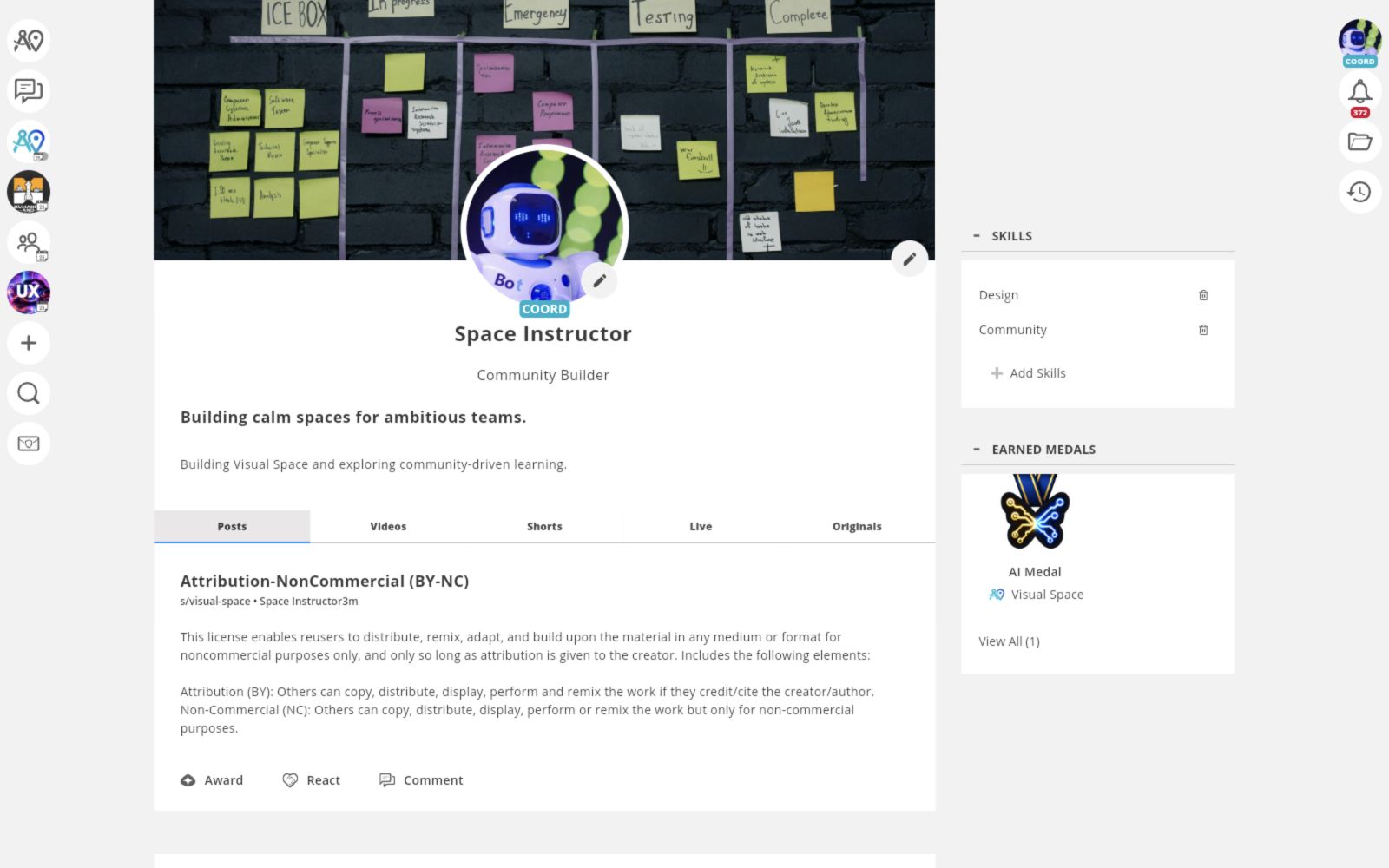
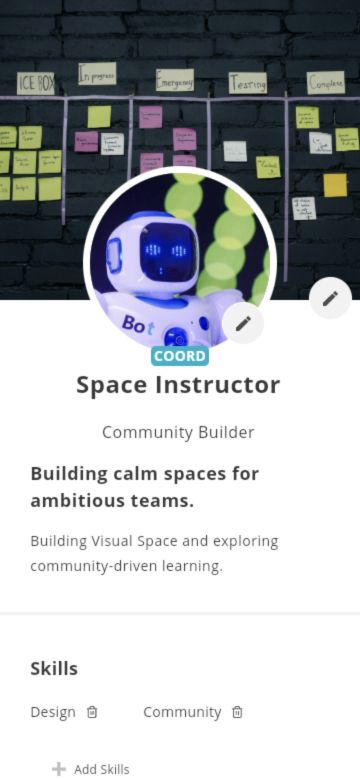
Biography, skills and profile artwork
A name, a short biography and a few specific skills help people understand what you bring. Frame your own avatar and banner, then edit the text directly on your profile. Visitors see your finished introduction without the editing controls.
Published Posts, Videos and Originals
Your published Posts, Videos, Shorts, Live and Originals have their own places on your profile. People can explore the formats that interest them, with recent work first and drafts kept out of the public view.
-
Published content
Share a post, a video or an Original through its own publishing workflow.
-
Profile content tabs
Your profile gathers your published work into the relevant content tabs.
-
Profile links
Public identity and public publications can be explored by signed-out visitors too.
Space-issued Medal certificates
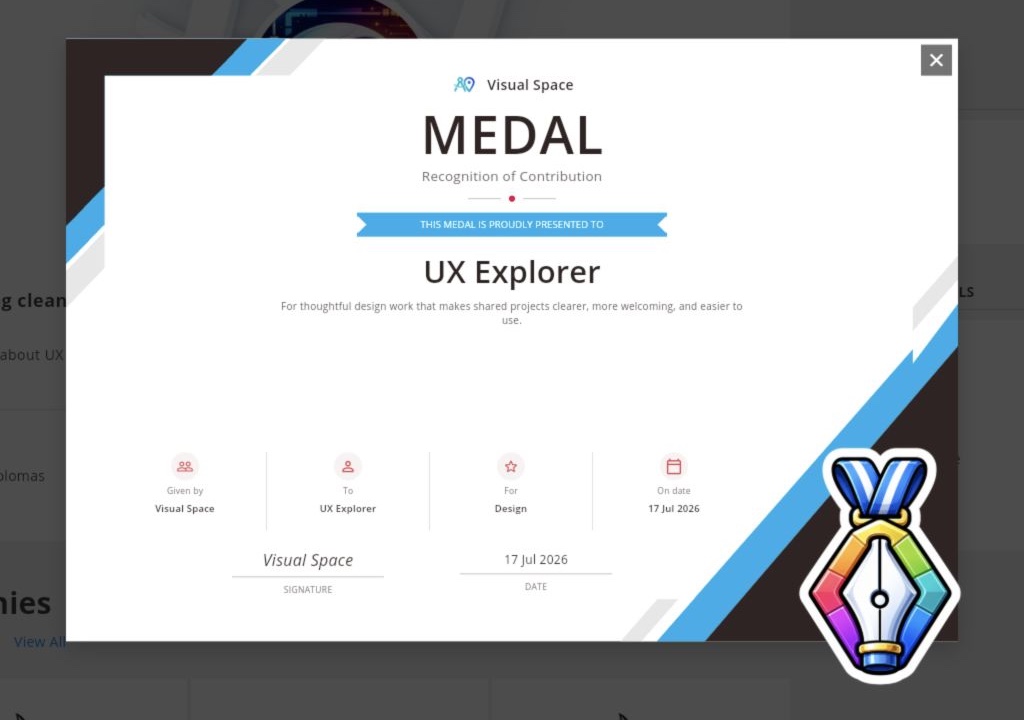
Earned Medals connect your profile to the community that recognized you. Open a Medal to read its certificate: the issuing space, date and saved message explain the contribution. The showcase follows the current space, so each community can recognize its own part of your story.
-
Medal certificates
Medals are thoughtful member recognition, distinct from quick Awards on individual items.
-
Space-specific recognition
Signed-in visitors see recognition from the space they are exploring.
View Later collections
View Later gives your account a personal place for useful posts, articles, events, goals and Documents. Group bookmarks into collections and return to their original context when you are ready. Your collections stay personal, and saving a reference keeps the original work where it belongs.
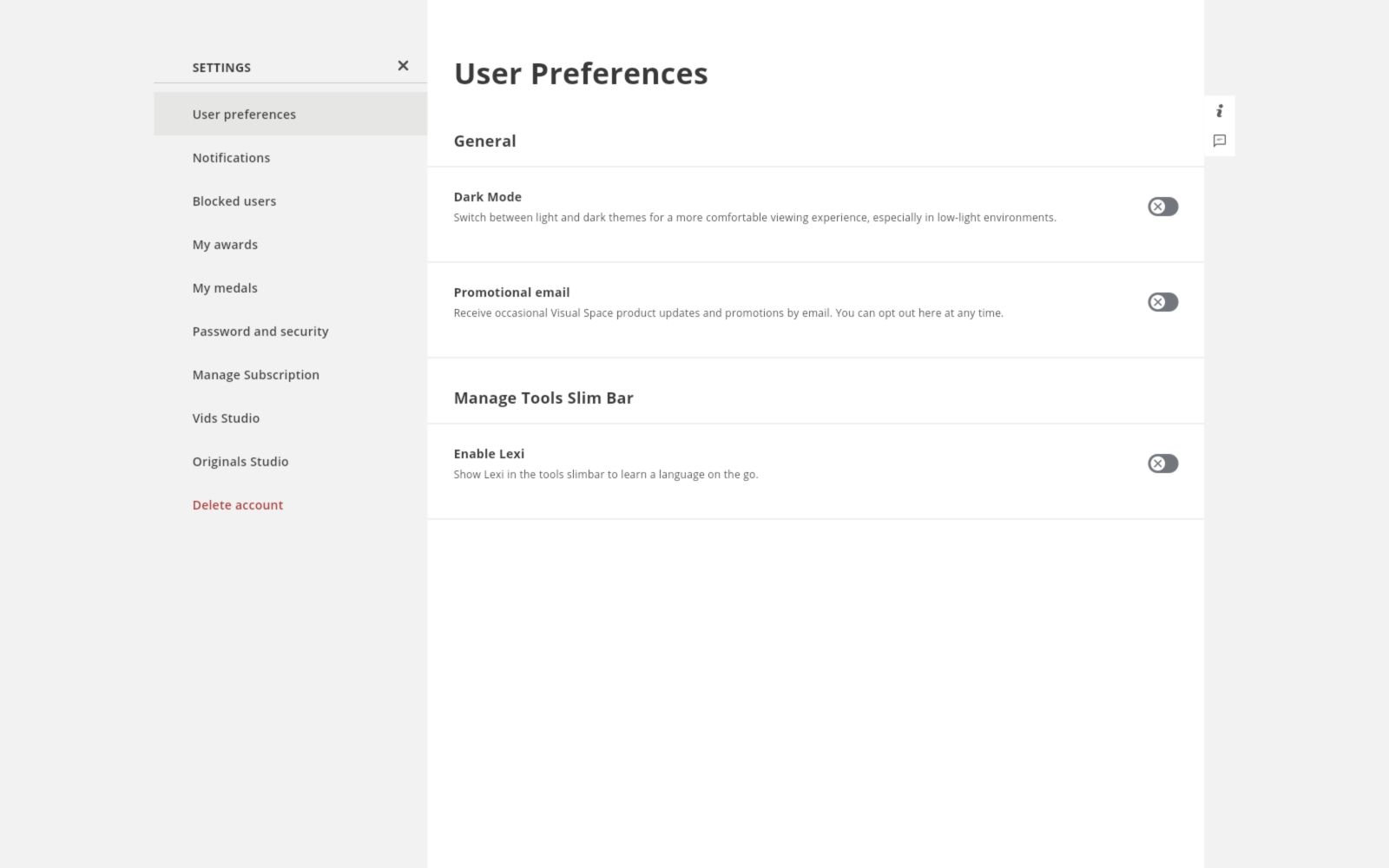
Appearance and app preferences
Switch between light and dark appearance, choose whether to receive promotional email, and add Lexi to your tools slimbar when language practice belongs beside your work. Theme changes take effect immediately. Your favorite apps and launcher order are personal too, so the tools you use most are easier to reach.
Profiles manual
Read the guides and step-by-step tutorials for more detail.
Browse the full manual →