Polls
Polls with article context
Ask your community to choose, with the explanation close at hand. Visual Space connects each poll to an article, its feed post and the space where the decision belongs.
Questions with supporting explanations
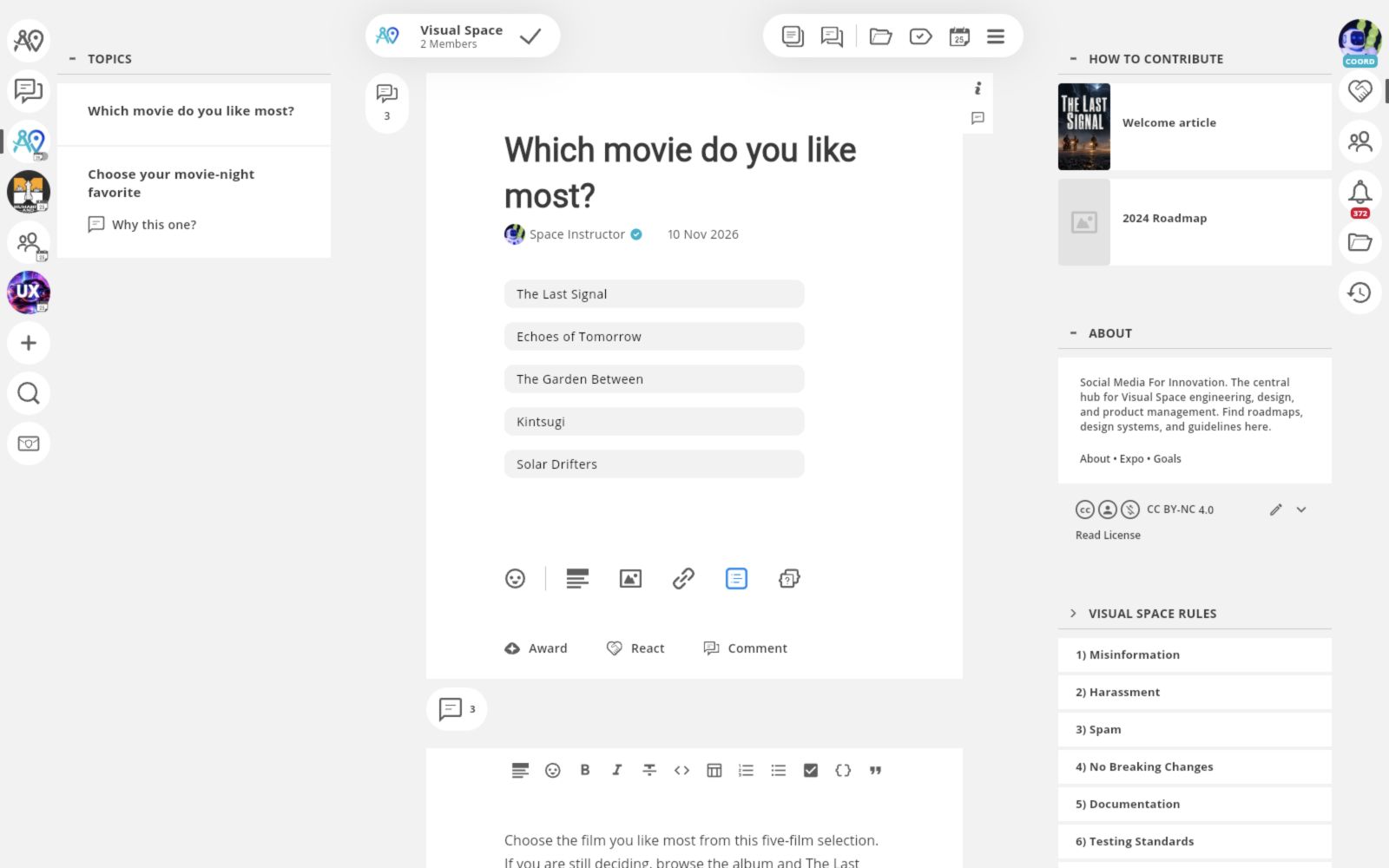
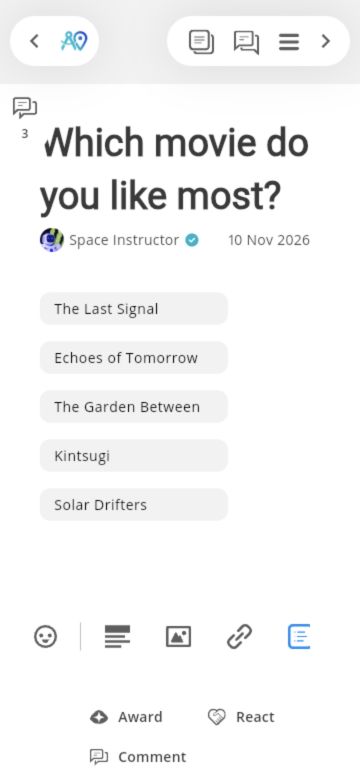
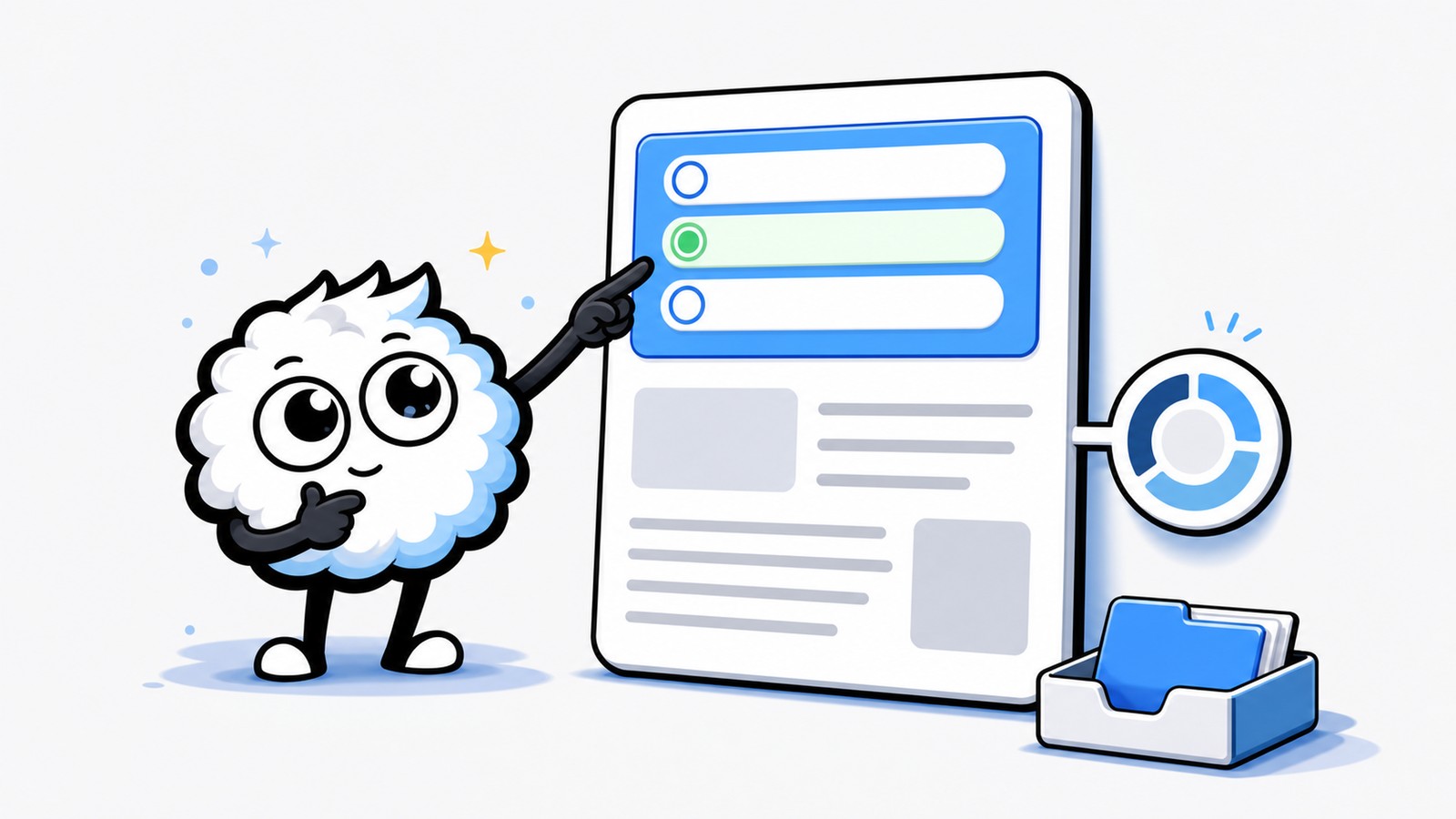
A quick question can stand on its own. A bigger decision can include definitions, evidence or consequences in the article body. The poll sits above that explanation, so readers can understand the alternatives before answering.
Draft options and publication
Build the poll in a private article draft. Its title asks the question, and its selected Poll summary holds the choices. Finalize the options before publishing: changing a published option set clears existing votes.
-
Publishing audience
Select the space and activity where the question belongs.
-
Answer choices
Write at least two distinct answers and add more useful alternatives when needed.
-
Publication
Review the saved draft and release the poll with its article and linked post.
Vote from a post or article
Readers can answer directly from a poll post or open its article for the full story. Both surfaces lead to the same poll, while comments stay with the article. A focused answer and the discussion around it belong together.
Browse polls by Space and folder
The Polls library follows your current space or area and its document folders. Open a poll to return to its article and vote. It gives your group a dedicated browsing route to poll-backed work alongside the ordinary feed.

-
Area and folder navigation
Choose the activity or subspace relevant to the question.
-
Poll articles
Members with the required permissions can organize the underlying documents within the same space.
Results, percentages and voter previews
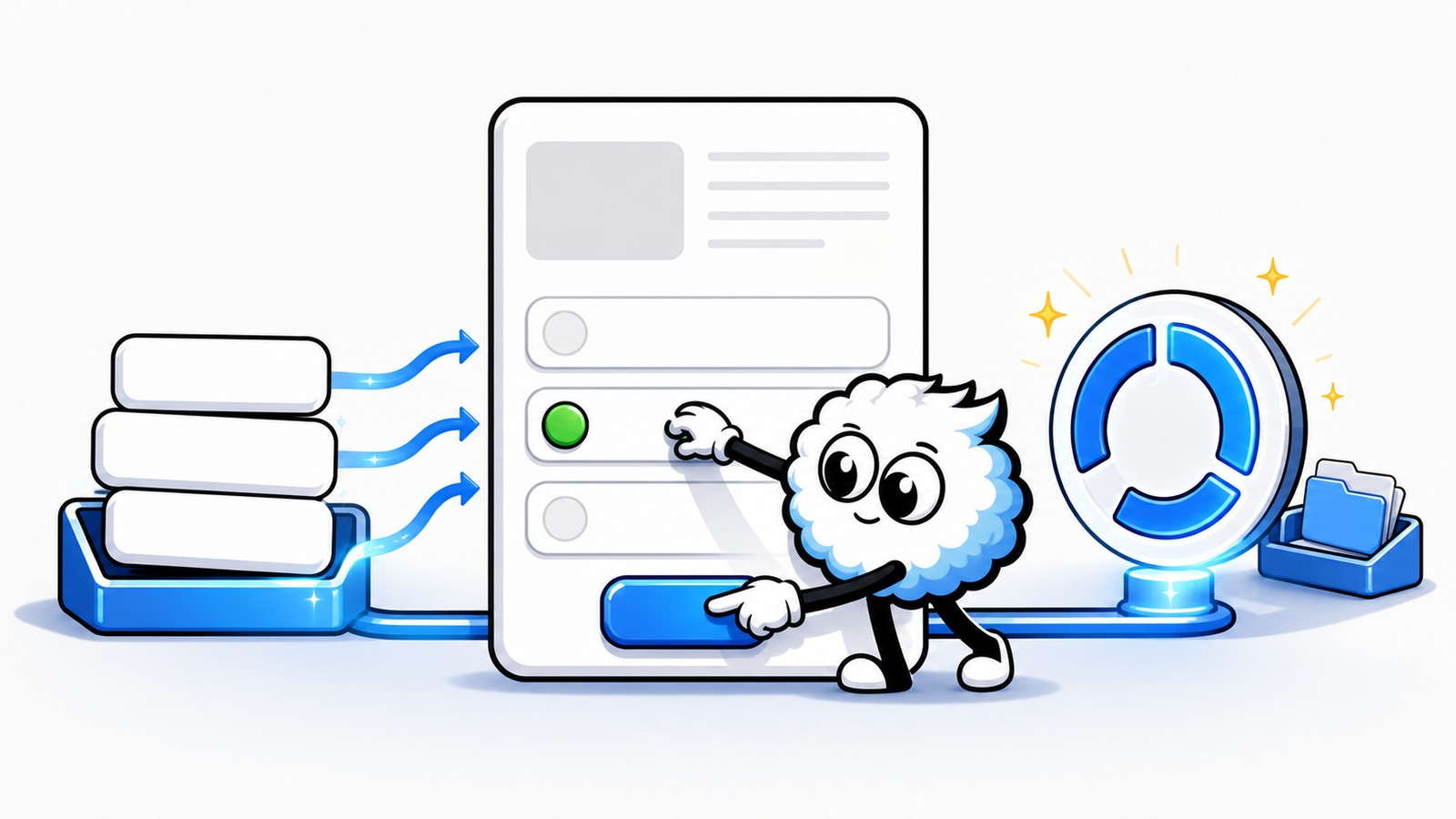
After you submit one choice, the card shows result bars, percentages and the total vote count, with your selection highlighted. Voter previews add recognizable people to the response. Use Refresh Results to check newer totals as others answer; these polls are not anonymous.
Polls manual
Read the guides and step-by-step tutorials for more detail.
Browse the full manual →