Posts & Articles
Posts and long-form articles
Share a quick post or develop a complete article. Your introduction, deeper explanation and community discussion stay connected in the space where the work belongs.
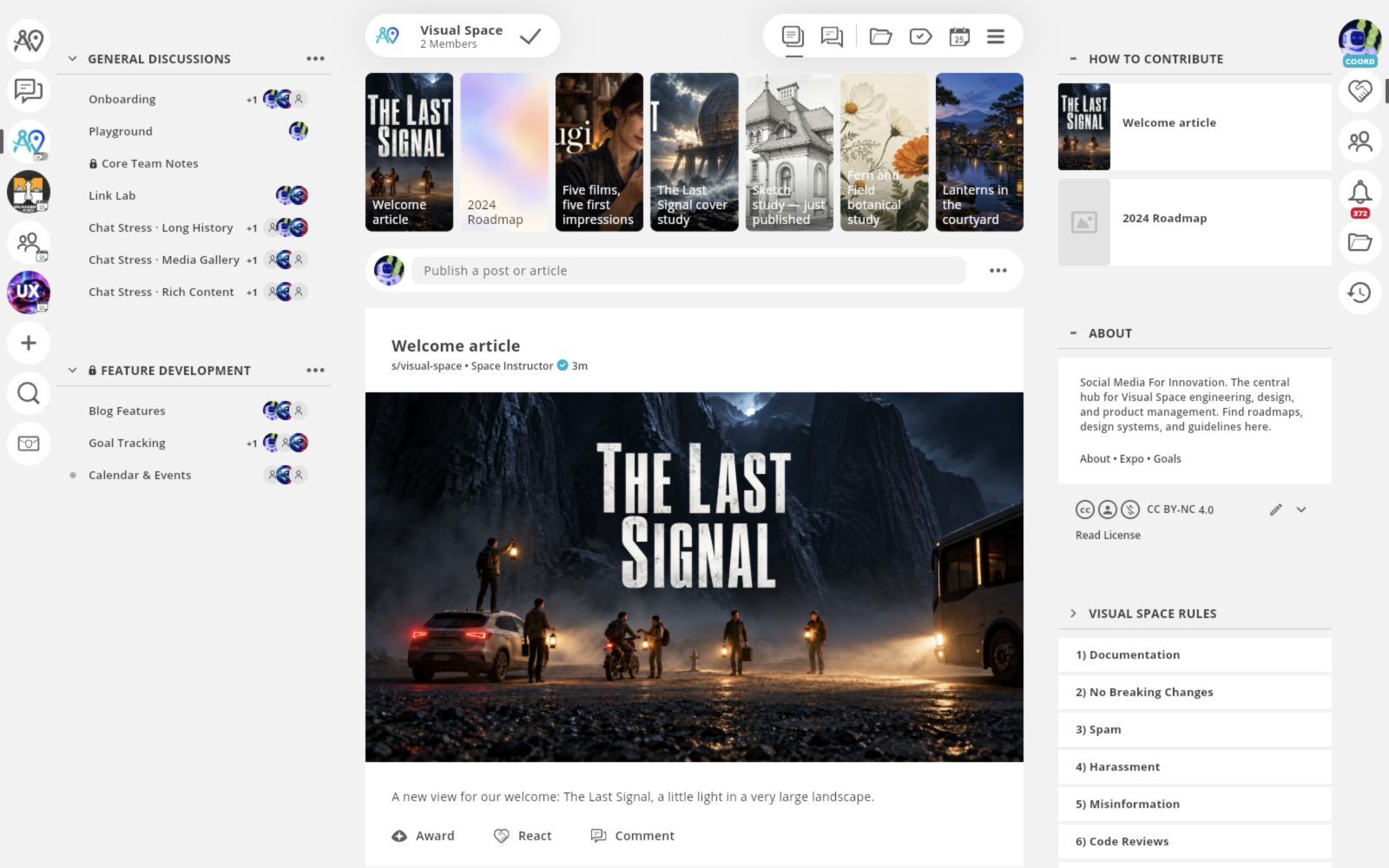
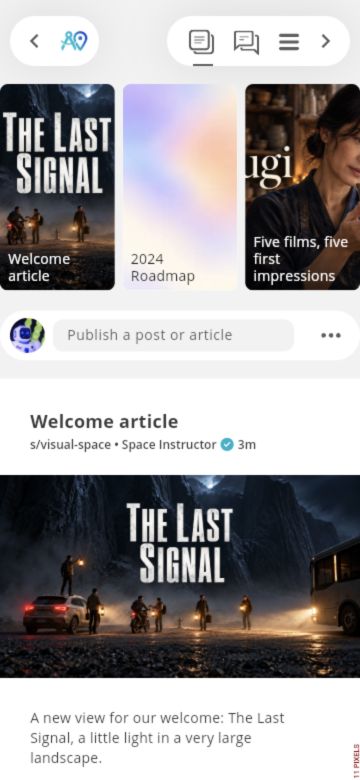
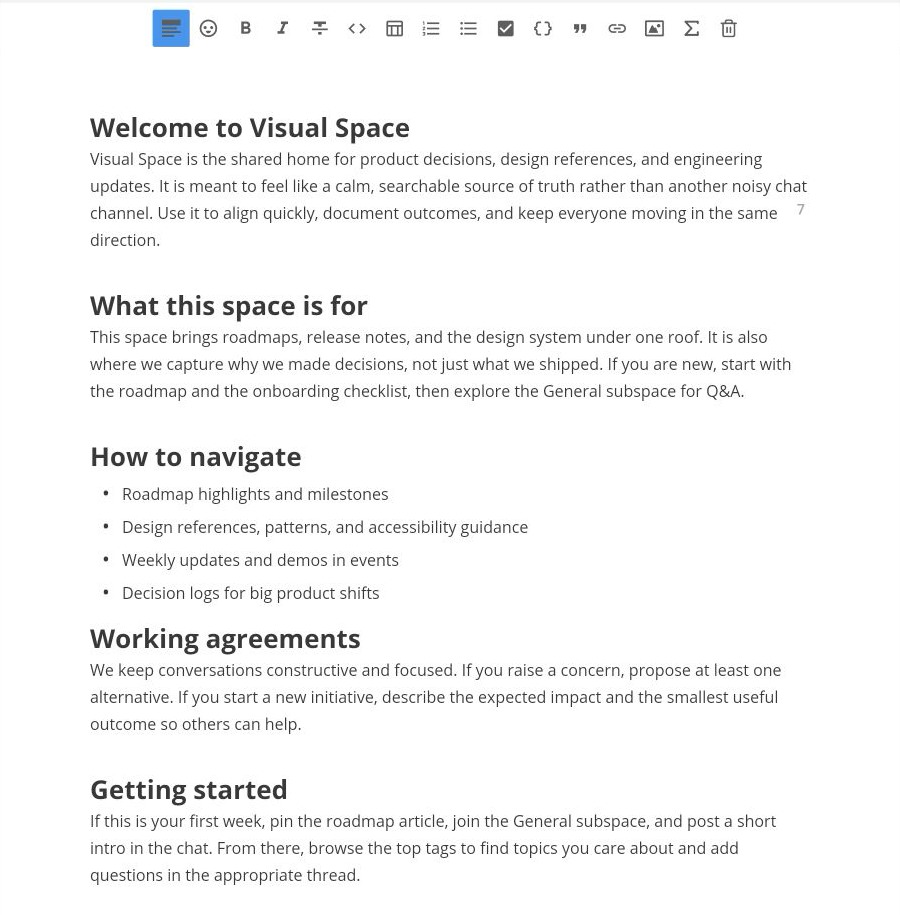
Post summaries and article editing
Choose a Text, Image, Link or Poll summary for the feed. Keep it as a short post, or expand it into an article with headings, images, tables and links. The summary you craft opens the reading page too, so your introduction stays connected to the explanation.
Private drafts and publishing
Saved progress and publication are separate steps. New articles begin as private drafts, with save feedback as you write. Publishing releases the article and its feed post together, under the access rules of the space or activity you chose.
-
Publishing location
Start in the space or activity whose audience and permissions fit your work.
-
Saved drafts
Write the introduction and optional body, follow the save feedback, and return to your saved draft later.
-
Article and feed publication
Release the reading page and feed introduction together. Later title and summary edits update their connected presentation.
Section navigation and discussions
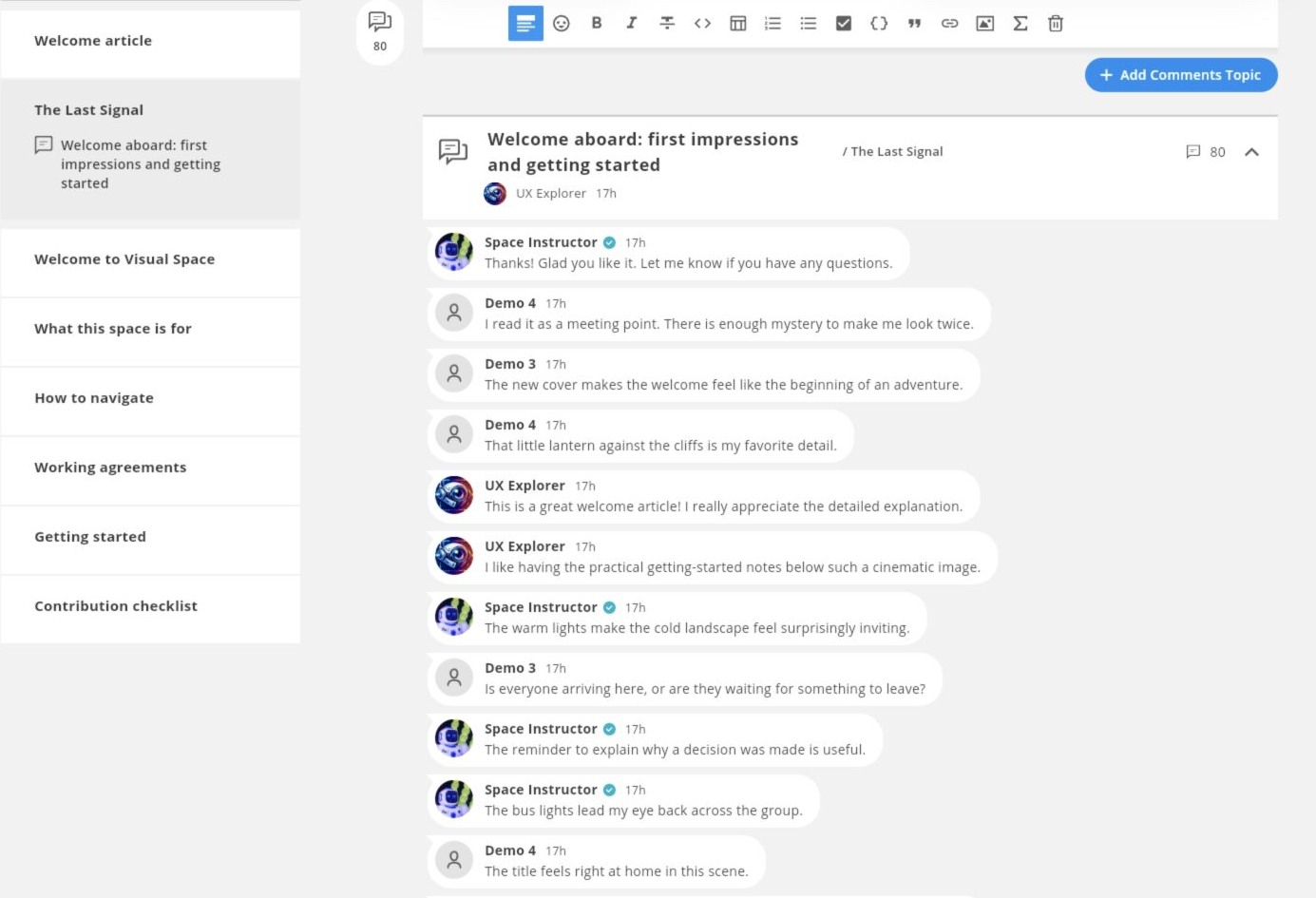
On desktop, the Topics index maps the summary, body headings and their discussions. Readers can jump to the section they need, then follow a conversation attached to that part of the article. Feed comments lead into the same article context.
-
Headings index
Headings become desktop index entries. Supporting side panels fade during a longer read and return when you need them.
-
Section discussions
Keep questions and replies in section-focused topics, with reactions and Awards available for appreciation of the whole article.
Publish a Chat message as an article
Eligible members can choose Publish as article from a shared Activity Chat message. Its text, visual media and original contributor context prepare a private draft for review. Shape the title and explanation, then publish it back into the owning space’s feed.
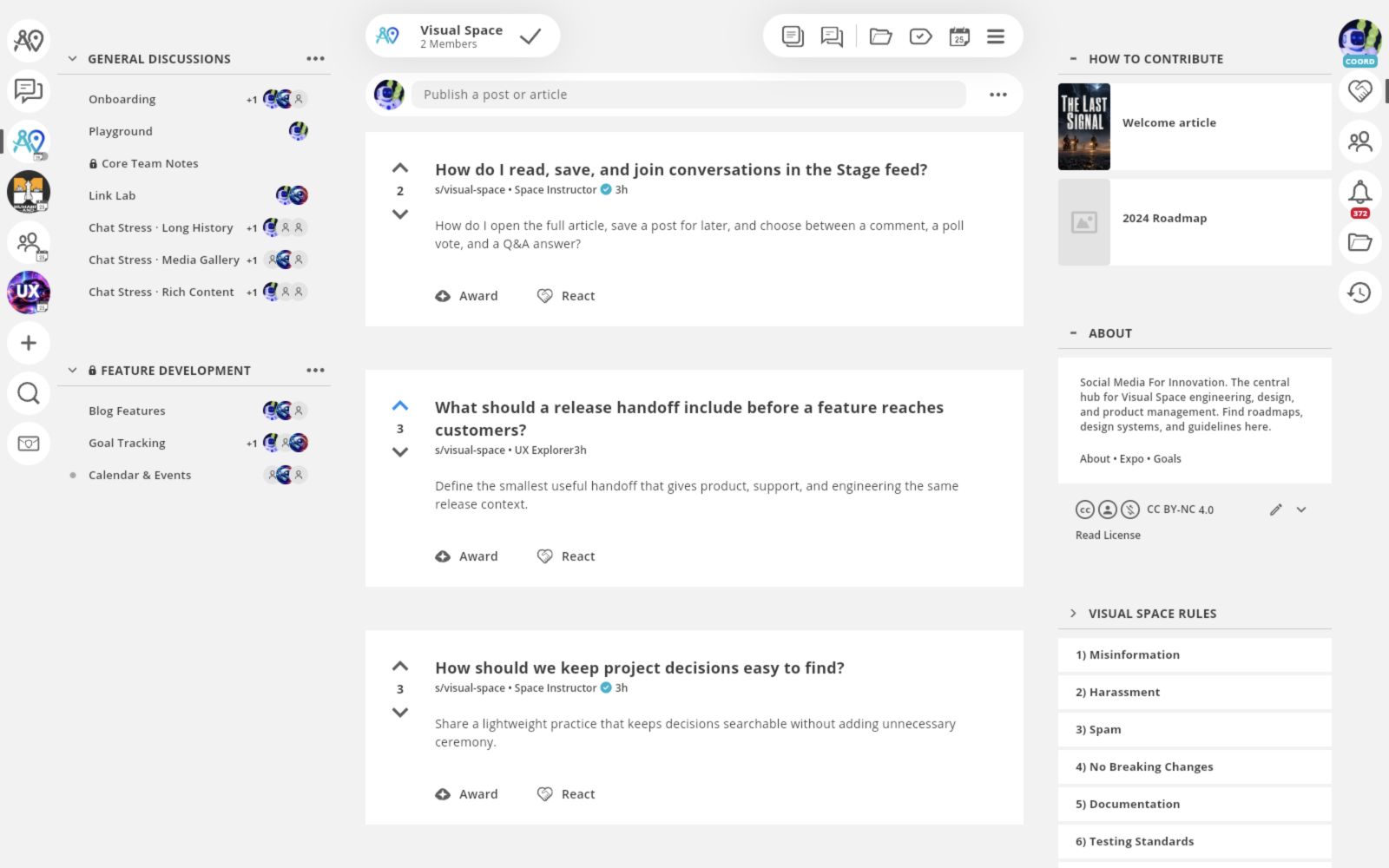
Questions, answers and voting
Q&A keeps the article’s question, explanation and space context together, then adds formatted answers, votes and direct comments. Answers rank by score, and the feed previews up to three leading responses. Open the article to explore the complete exchange.
Posts & Articles manual
Read the guides and step-by-step tutorials for more detail.
Browse the full manual →Guides
Tutorials
- Ask And Answer A Question
- Browse And Sort A Feed
- Choose An Article Summary
- Create And Publish An Article
- Create And Vote In A Poll
- Feature And Pin An Article
- Find Read And Save Articles
- Organize Polls
- Resume And Publish A Draft
- Review A Reported Post
- Start And Manage An Article Discussion
- Turn A Chat Message Into An Article
- Write And Format An Article