
Select
Choose an object or drag a selection rectangle. Move, resize, and restyle the selected content.
Whiteboard
Plan together with movable notes, diagrams, tasks, and data. Connect the board to the people and documents behind the work, then keep building after the workshop ends.
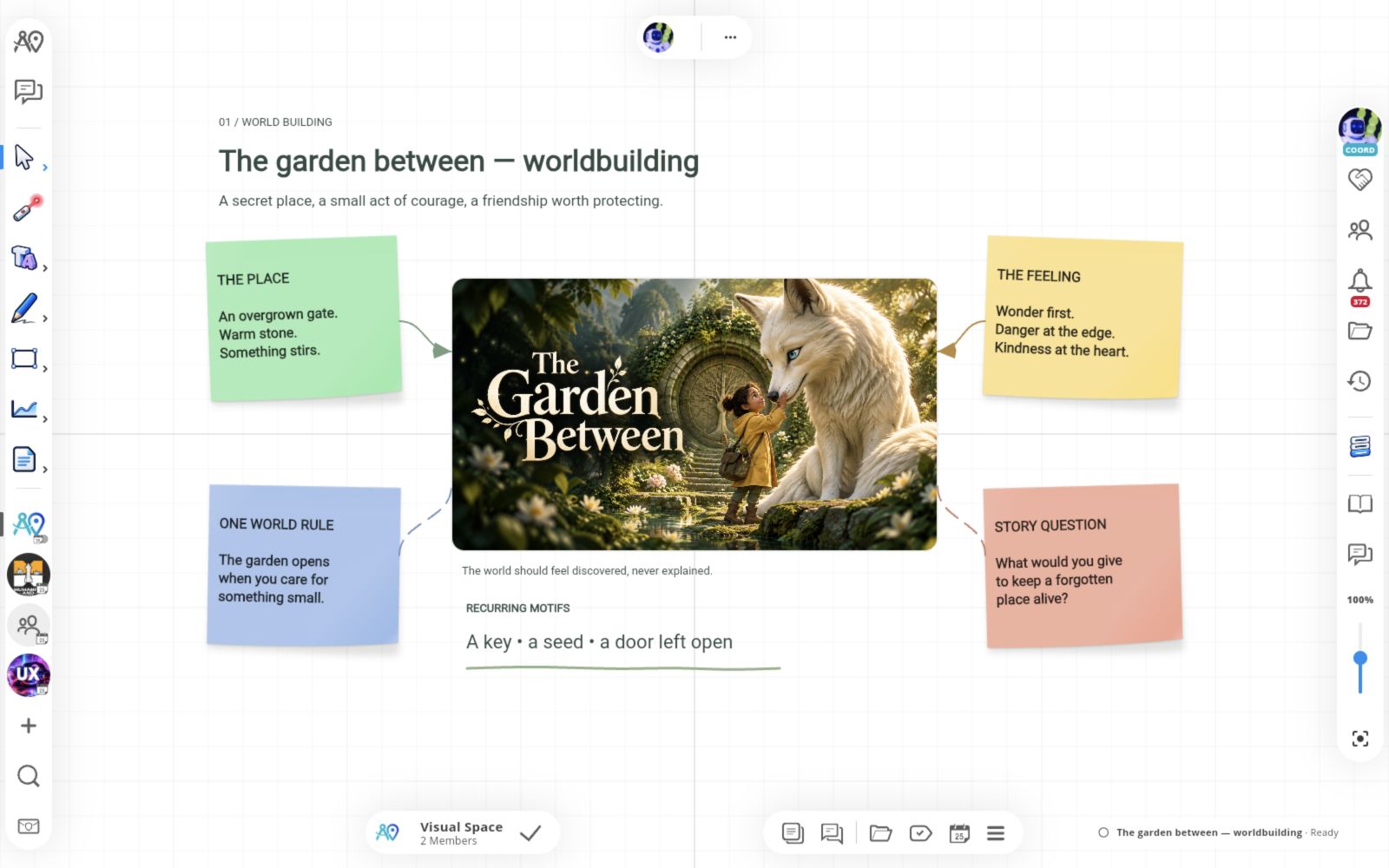

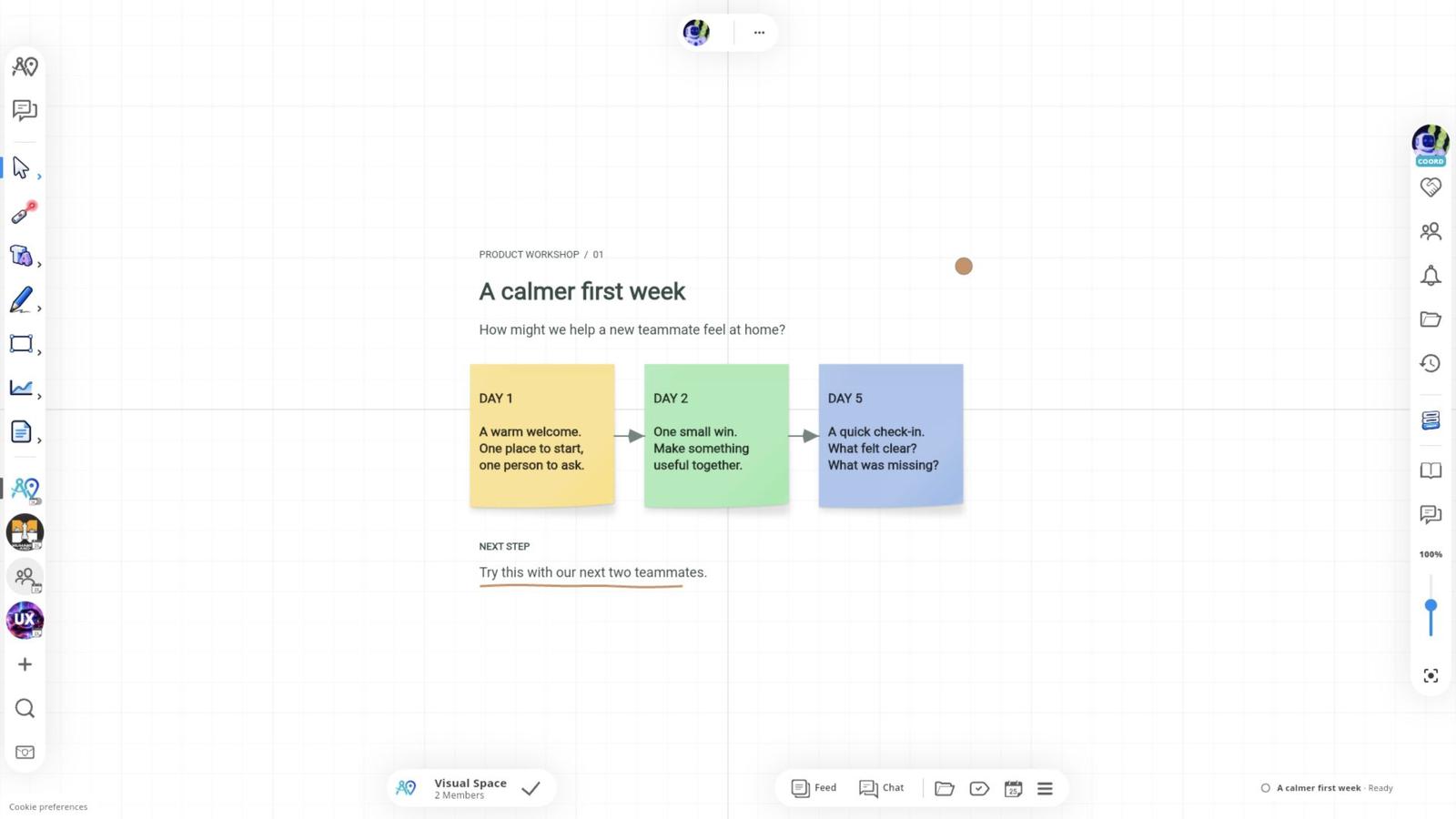
Start with Post-its, text, and a few freehand marks. Arrange them into a process with shapes and connectors, then add a todo list for the actions. Objects stay movable and editable; supported connectors follow their attached objects as the plan changes.
Bring structured information onto the same stage as the discussion. Keep the data editable and choose the view that explains the question.
Use an editable table for owners, tasks, and statuses. Change individual cells on the canvas or update several rows through CSV.
Use pie charts for a distribution, bar charts for category comparisons, and line charts for change over time.
Move and resize tables and charts like other board objects. Update their CSV values as the discussion develops.
Pin a document, Goal, Event, Profile, or space area beside the idea it supports. These cards open the original source, so a visual plan can lead straight to its brief, checkpoint, or responsible person. Reuse images from the workspace and keep those useful connections in the saved board.

Live cursors, pointers, and selections help everyone follow the shared canvas. Personal undo follows your own recent board actions. Use object-linked comments for precise feedback and the paired Article for the longer brief or decision summary. Open the same persistent board in an activity meeting, then return to it in Docs when the call is over.
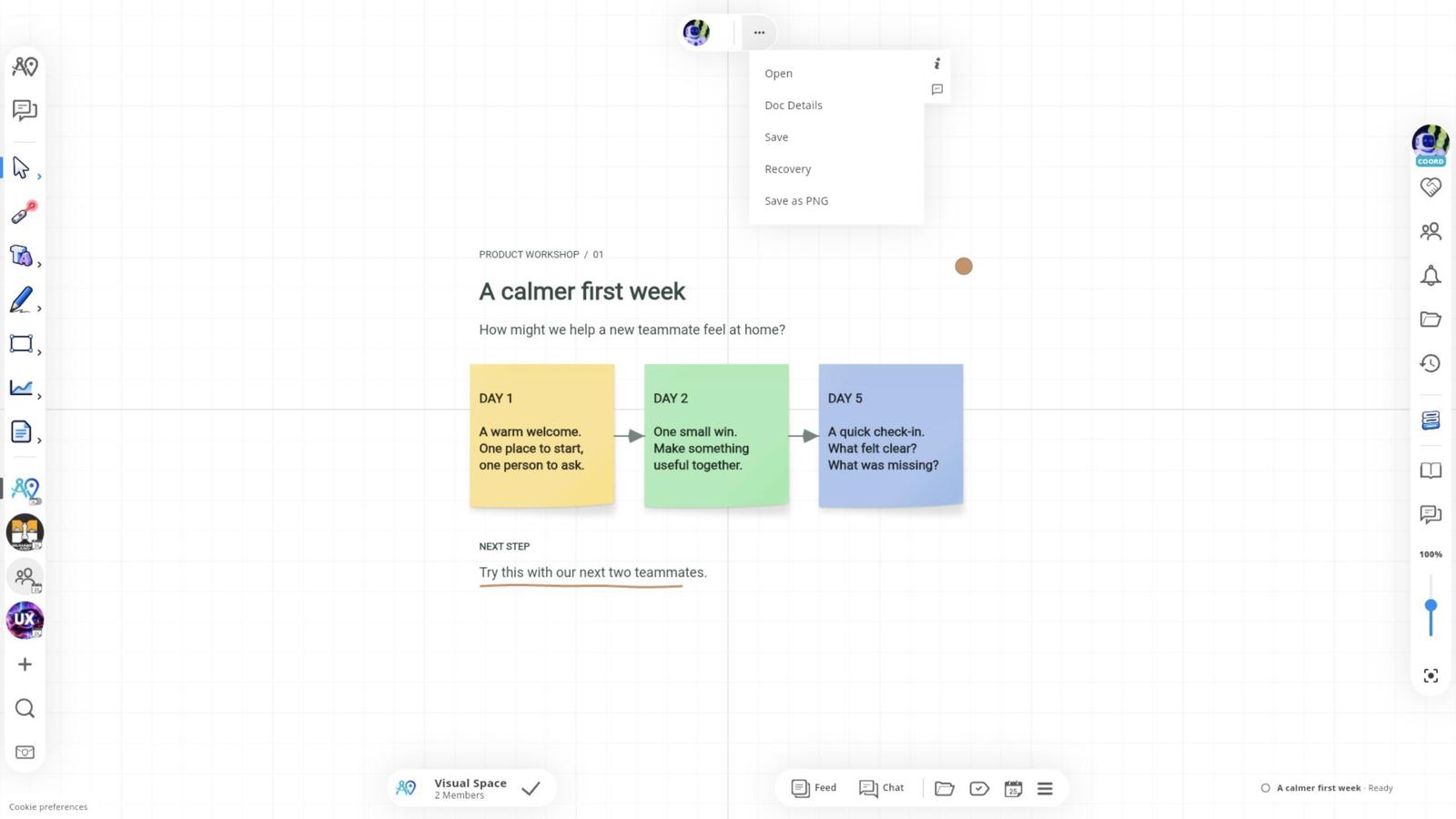
Board changes save as you work; confirm Saved before leaving a session. For a quick review image, frame the useful area and choose Save as PNG to capture the visible viewport. The source board, its objects, linked Article, and discussion remain in the owning space for the next round of work.
Choose tools for selection, drawing, notes, diagrams, data, and workspace references. Each group remembers its most recently used tool.
Choose an object or drag a selection rectangle. Move, resize, and restyle the selected content.

Draw around an irregular group of objects to select them together.

Move around a large board without moving its objects. Hold Space for temporary panning.

Inspect details or return to a wider view. Zoom changes your view, not the size of the objects.

Draw collaborators’ attention to a location without selecting or moving the content underneath.

Place headings, labels, or longer explanations. Edit the wording and its font size, color, and emphasis.

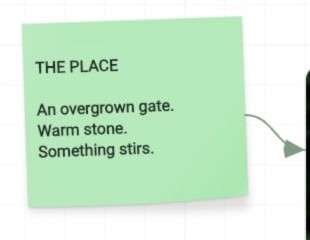
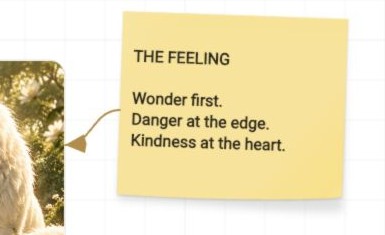
Place a colored note for a workshop idea, question, or decision. Each note remains editable and movable.
Keep action items on the board and mark individual entries complete. Checkbox changes are saved.

Draw freehand lines for sketches, diagrams, or handwritten annotations.

Add broad translucent strokes to emphasize part of a diagram or reference.

Remove unwanted board objects and markup. It does not retouch pixels inside an image.
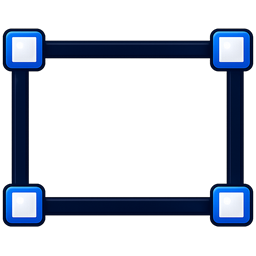
Draw a rectangular shape for a diagram, region, or visual grouping.
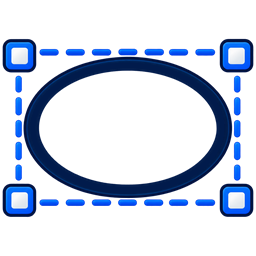
Add circular or elliptical shapes for nodes, callouts, and visual grouping.
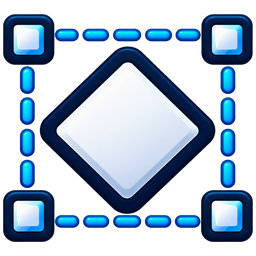
Use a diamond for a decision point or another distinct step in a diagram.

Draw a straight line to separate areas or connect a simple visual explanation.

Show a direction, next step, or relationship with an arrow.

Attach endpoints to eligible objects. The connector follows them when they move or resize.
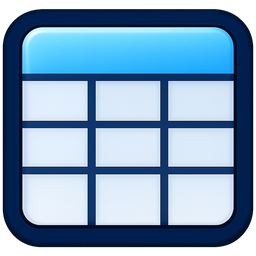
Place editable text data on the board, including CSV content. Whiteboard tables do not run formulas.

Show the parts of a total with editable chart values and a selectable color scheme.

Compare values in an editable bar chart beside the discussion or plan.

Show a sequence or trend with editable chart data directly on the board.

Place an openable card linked to a document. Change its source without rebuilding the surrounding plan.

Add an openable event card beside the work it concerns.

Use linked profile cards to map people, responsibilities, or stakeholders.

Point to a space, subspace, or activity from the visual plan. Access follows the source’s permissions.

Place an existing space image and replace its source later while keeping its place in the layout.

Add a compact visual cue and swap it for another emoji when the meaning changes.
Choose a catalog icon, then change its color or size to fit your diagram.

Give an award and place its recognition card on the board. Confirming uses the chosen quantity from your available award balance.

Place an openable reference to a goal beside the ideas or tasks it concerns. The source’s access rules still apply.

Read the guides and step-by-step tutorials for more detail.
Browse the full manual →