
Move
Reposition selected layers and use transform controls to arrange the composition.
Pixels
Make pixel art, layered illustrations, and frame animations in one editor. Keep the artwork editable, work together in your space, and share the finished image.


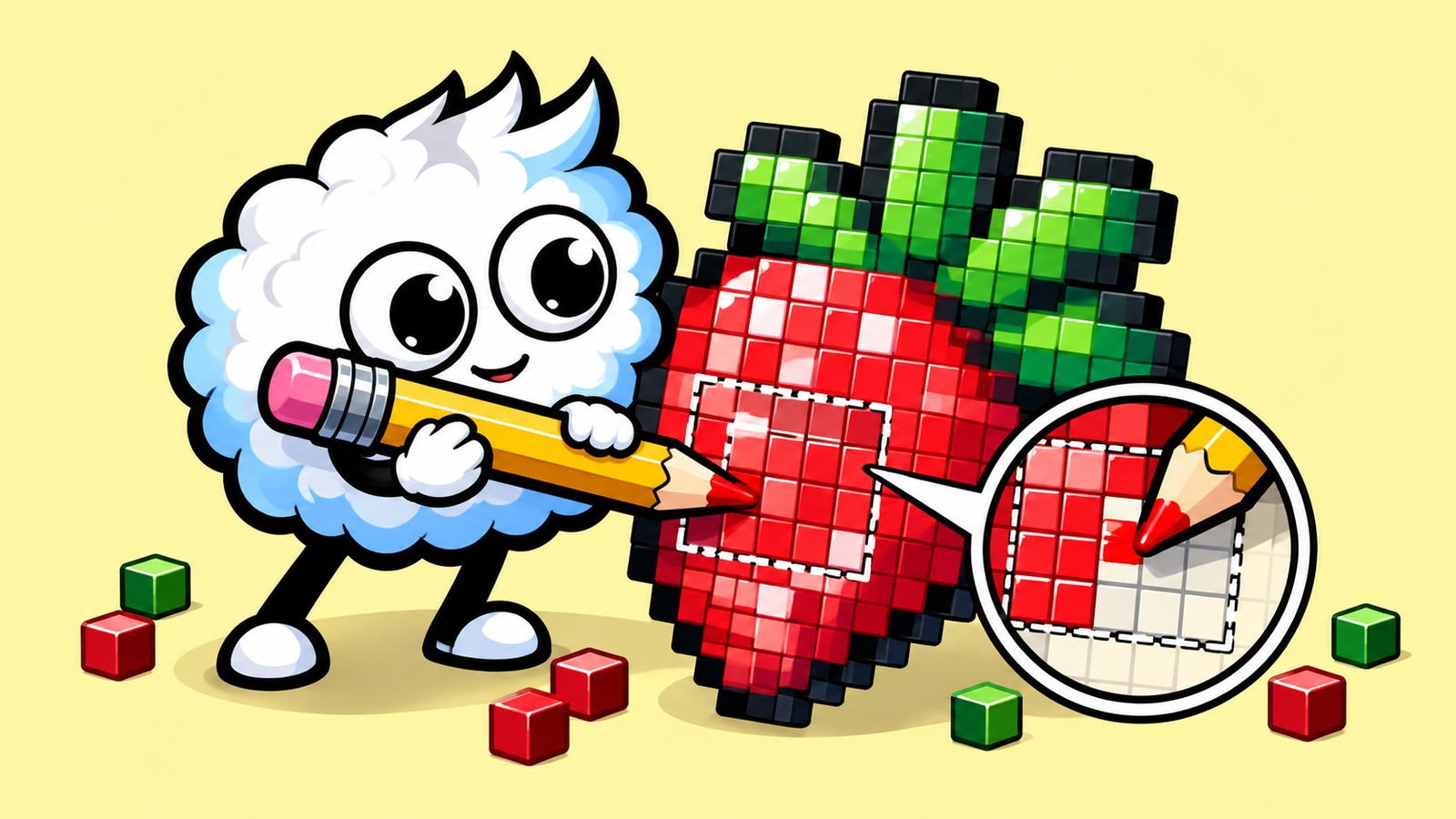
Start with a small sprite or a larger illustration. Zoom into the pixel grid, draw crisp marks with Pencil, or use Brush for softer strokes. Selections keep changes inside the area you choose, while the eyedropper lets you reuse colors already in the artwork.

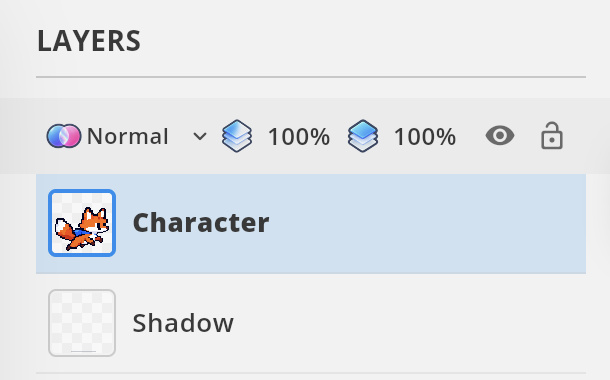
Keep the character, shadow, and background on separate layers. Masks hide details without erasing the source. Adjustment layers let you revisit color and light settings, while editable text, shapes, and smart objects leave room for the next revision.
Duplicate a pose, change the next frame, and preview the sequence in the animation timeline. Each frame has its own layer stack, so adjusting one pose leaves the others intact. Set the playback speed and loop the preview to judge the movement. Save the complete sequence in the shared document or a .vspixels project; image exports capture the active artwork.
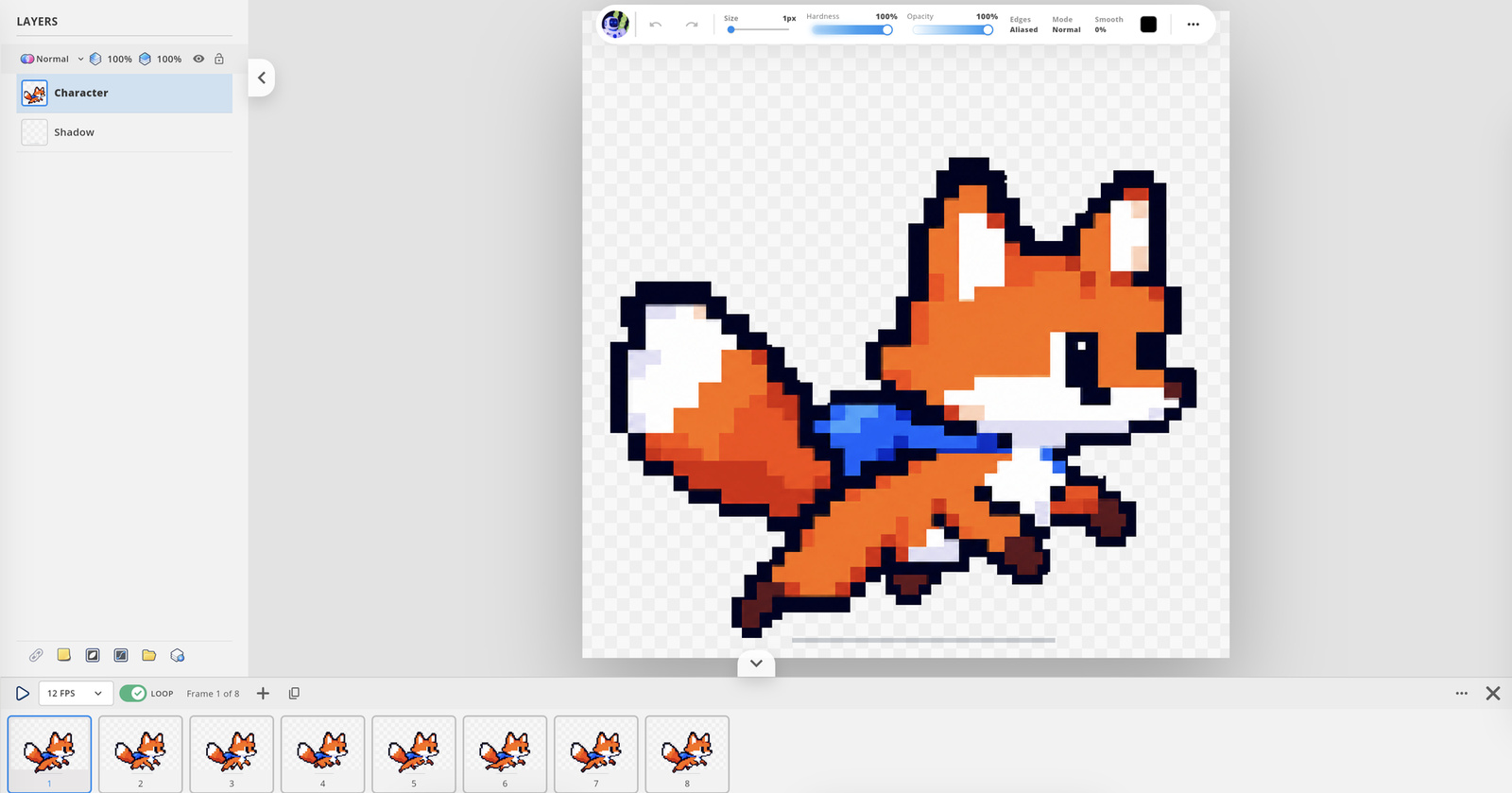
Create a shared Pixels document in its space so people with access can work on the same artwork. See each other's pointers and receive layer and artwork changes. Keep the brief in its Article and feedback in its Comments, then agree which layers each person will edit. Shared work saves automatically; check the save feedback before handing it over.
A finished image and an editable project serve different purposes. Pixels gives you a way to keep both, so the next small correction does not mean rebuilding the drawing.
Download a .vspixels master to retain supported layers, masks, smart-object sources, adjustments, and animation.
Resize pixel artwork with nearest-neighbour resampling, or extend the canvas to make room without resampling the drawing.
Export the active artwork as PNG, JPEG, or WebP. Choose PNG for transparency; keep the Pixels project for continued editing.
Use precise pixel tools alongside brushes, layers, selections, and a frame timeline. Tool settings change with the active tool and selected content.
Reposition selected layers and use transform controls to arrange the composition.

Select a whole editable path so you can move or transform its geometry.

Select individual path points to refine an editable outline.
Drag a rectangular pixel selection. It is the most predictable selection for copying pixels to another layer.

Draw a freeform pixel selection around an irregular subject.

Select matching colors. Tolerance and contiguous matching determine how far the region extends.
Adjust the document framing around the area you want to keep.

Sample a color from the visible composition for the foreground color.

Fill matching pixels using tolerance and contiguous or global matching. A selection can limit the affected region.

Draw a linear or radial color transition with editable color and opacity stops in the tool options.

Paint on an eligible pixel layer or mask. Set size, hardness, opacity, and flow for the stroke you need.
Make hard, pixel-aligned marks for crisp edges and individual pixel work.
Copy detail from a sampled source. Alt or Option-click chooses the source before painting.
Remove coverage from an eligible pixel layer. Check whether the content or its mask is selected first.

Soften nearby pixels with a local dab or stroke on eligible raster artwork.

Increase local edge contrast in eligible raster artwork.

Drag nearby pixel color along a stroke to blend or reshape a painted detail.
Transfer sampled texture while adapting it to the destination tone. Choose a source with Alt or Option-click.

Use nearby image detail automatically for a small local correction.

Lighten a chosen part of an eligible raster layer.

Darken a chosen part of an eligible raster layer.
Adjust local color saturation on eligible raster artwork.

Build an editable path with points and curve controls.
Create an editable rectangular shape. Shift keeps equal proportions while drawing.
Create an editable ellipse. Hold Shift for a circle.
Draw a straight line; hold Shift to constrain its angle.
Paint visibility separately from the layer’s color pixels. White reveals and black conceals.
Change light or color over the layers below while keeping the source artwork editable.
Apply supported effects to a layer and adjust their settings without repainting the artwork.

Pan across the document while leaving the artwork in place.
Add an editable text layer and adjust its wording and typography.

Magnify the detail or fit the image on screen. Actual Pixels provides a useful size check.

Draw an arrow to point out a detail or explain a direction. Hold Shift to constrain its angle.
Create and duplicate frames, set playback speed, and preview a loop. Each frame keeps its own layer stack.

Add a layer for an element that needs separate editing. Name, reorder, hide, and lock layers in the Layers panel.


Read the guides and step-by-step tutorials for more detail.
Browse the full manual →