
Add scene
Create a section of the story and organize its boards in the scene tree. Canvas position and reading order are separate.
Storyboard
Plan a film, animation, presentation, or product journey as scenes and boards. Keep the image, action, dialogue, and pacing together, with room around the sequence for the thinking behind it.
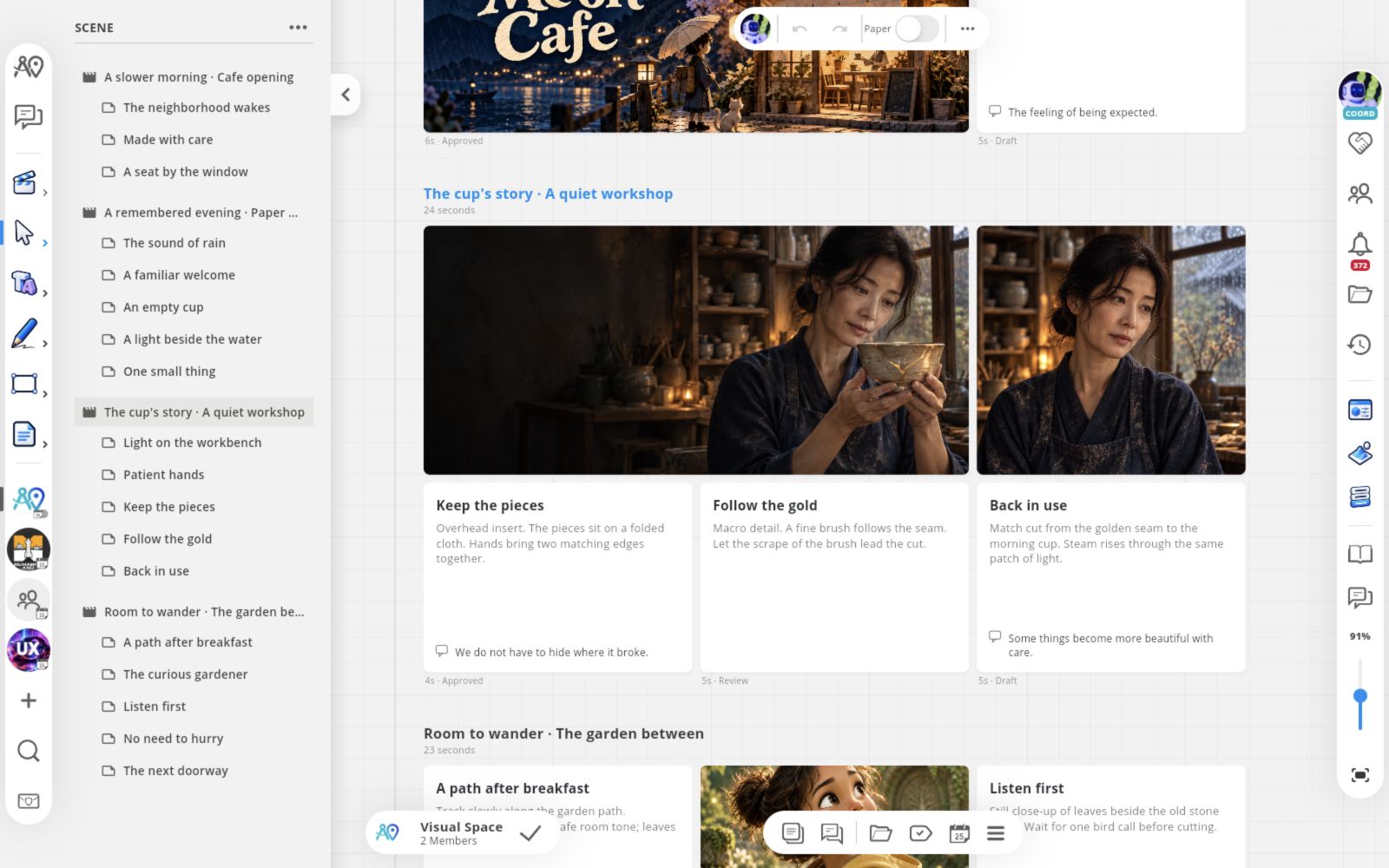
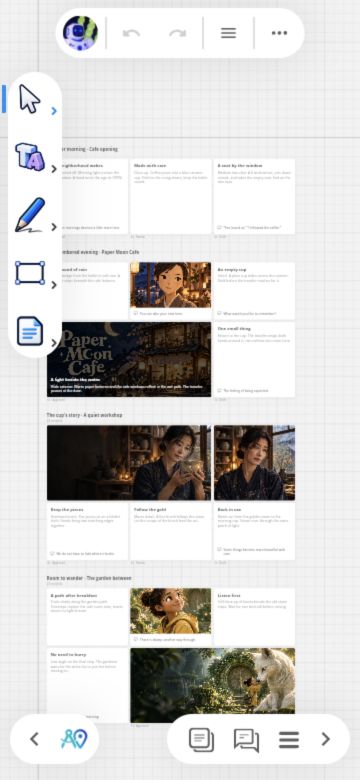
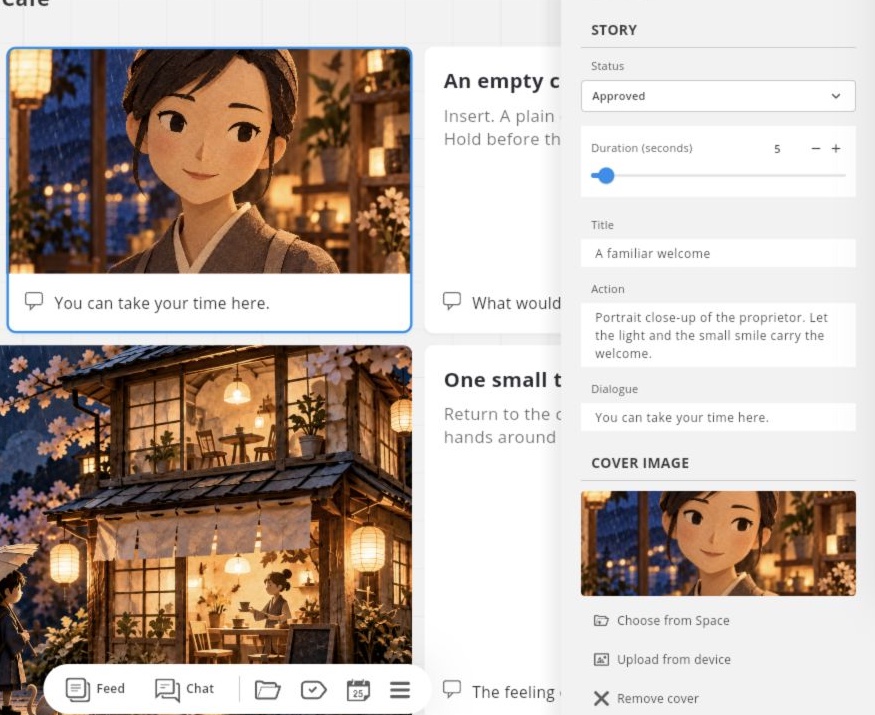
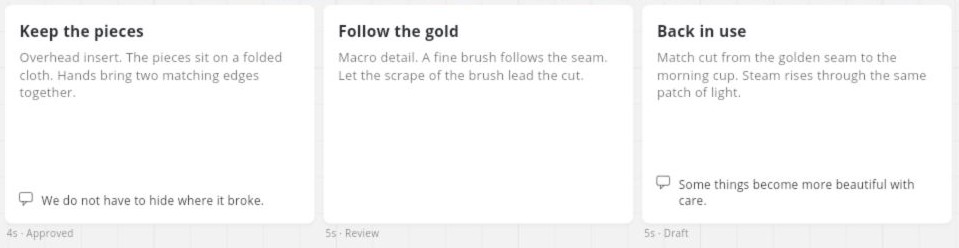
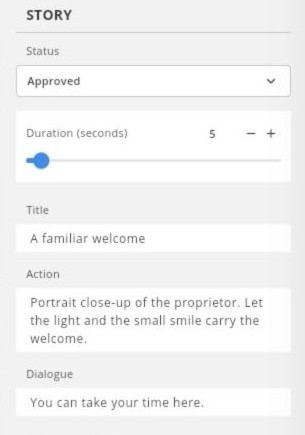
Each board holds a title, action, dialogue, and estimated duration. Add a cover for the composition, then use Inspector to keep the writing beside the visual. Start with words when the artwork is still undecided; the story can develop before every image is ready.
Use the scene tree to follow the story, then arrange the canvas for a readable overview. Board positions and story order are separate, so making space for a note keeps the sequence intact.
Create scenes for locations, chapters, or stages of a journey. Select a board to insert the next moment after it.
Give each board a duration and see the scene total update. Read the sequence aloud to spot a rushed explanation or a long opening.
Mark boards Draft, Review, or Approved using the meaning your team agrees on. Spot the moments that still need attention.
Choose a cover from your space or upload one from your device. Add sketches, arrows, Post-it notes, and checklists around the scene to explain framing, movement, or unfinished decisions. Separate canvas images can hold the mood references that apply to several boards.

Keep the storyboard in your space alongside its source images and other documents. Use its linked Article for the longer brief or script, and place references to documents, goals, and events directly on the canvas. Reviewers can open supported references without losing the connection between the scene and the work behind it.

Invite reviewers who can access the document and use its shared Comments to discuss the sequence. Name the scene and board in feedback so the next change is clear. Editors with write access can work together, see participant pointers, and keep their own view; personal Undo preserves edits received from others. Check the save feedback before handing the work over.
Create scenes and boards, edit their story fields, and add annotations around them. These are the creation, navigation, and annotation tools in the editor.
Create a section of the story and organize its boards in the scene tree. Canvas position and reading order are separate.

Insert a story moment after the selected board, or into the selected scene. Give it a title, action, dialogue, duration, and status.
Edit the selected board’s story fields, cover image, proportions, and size. Approved is an editor-chosen status, not a separate reviewer sign-off.

Set the shared canvas background and grid independently of the scene’s Paper background.

Revisit supported edits in the current editing session.

Choose an object or drag a selection rectangle. Move, resize, and restyle the selected content.

Move around a large board without moving its objects. Hold Space for temporary panning.

Inspect details or return to a wider view. Zoom changes your view, not the size of the objects.

Place headings, labels, or longer explanations. Edit the wording and its font size, color, and emphasis.

Place a colored note for a workshop idea, question, or decision. Each note remains editable and movable.

Keep action items on the canvas and mark individual entries complete. Checkbox changes are saved.

Draw freehand lines for sketches, diagrams, or handwritten annotations.

Add broad translucent strokes to emphasize part of a diagram or reference.

Remove unwanted canvas objects and markup. It does not retouch pixels inside an image.
Draw a rectangular shape for a diagram, region, or visual grouping.

Add circular or elliptical shapes for nodes, callouts, and visual grouping.

Use a diamond for a decision point or another distinct step in a diagram.

Draw a straight line to separate areas or connect a simple visual explanation.

Show a direction, next step, or relationship with an arrow.

Attach endpoints to eligible objects. The connector follows them when they move or resize.

Place an openable card linked to a document. Change its source without rebuilding the surrounding plan.

Add an openable event card beside the work it concerns.

Use linked profile cards to map people, responsibilities, or stakeholders.

Point to a space, subspace, or activity from the visual plan. Access follows the source’s permissions.

Place an existing space image and replace its source later while keeping its place in the layout.

Add a compact visual cue and swap it for another emoji when the meaning changes.
Choose a catalog icon, then change its color or size to fit your diagram.

Place an openable reference to a goal beside the ideas or tasks it concerns. The source’s access rules still apply.

Place an award reference on the canvas to include recognition in the story’s supporting material.
Read the guides and step-by-step tutorials for more detail.
Browse the full manual →