
Move
Position the selected scene objects with direct manipulation and supported snapping.
Stage
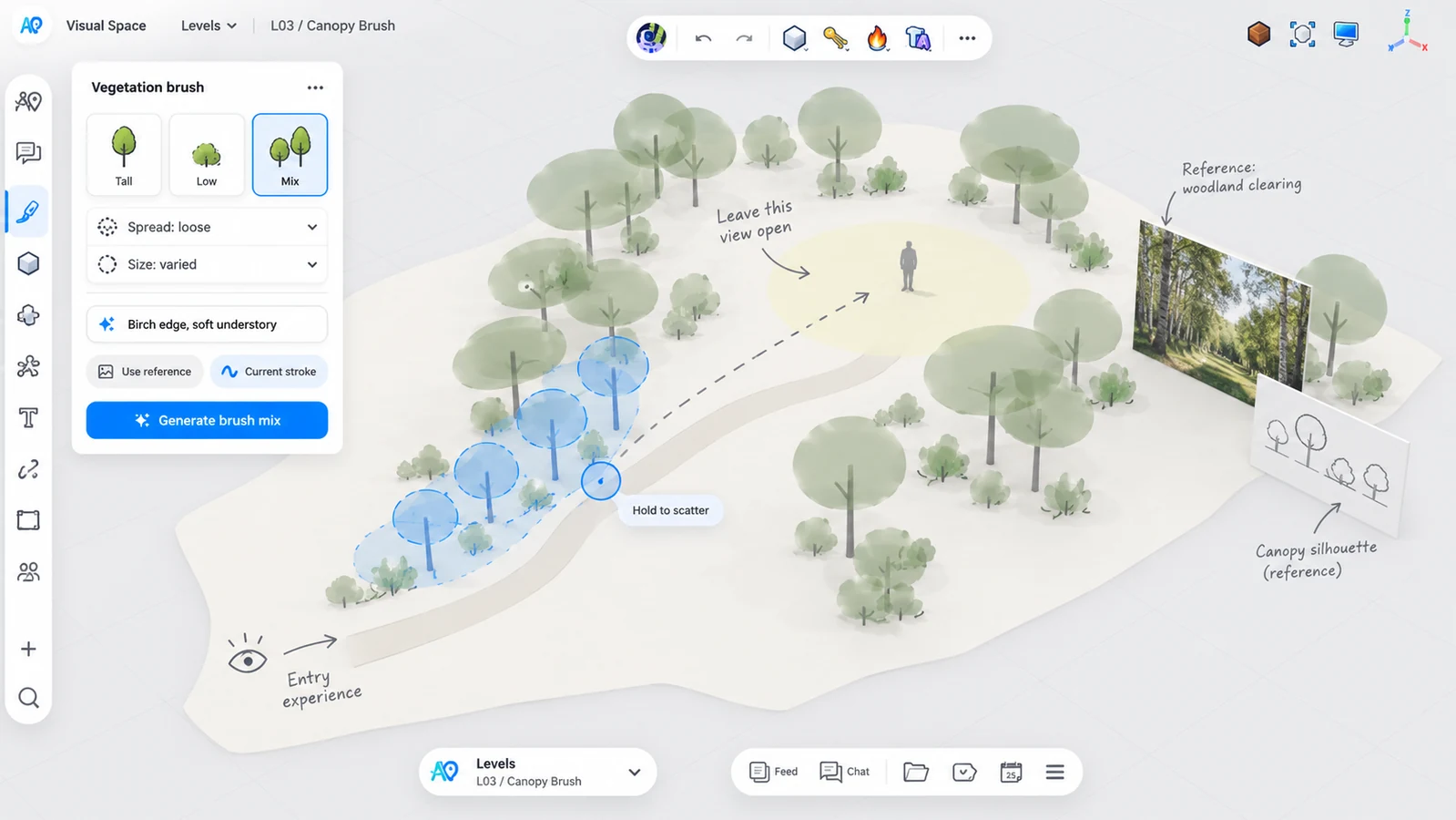
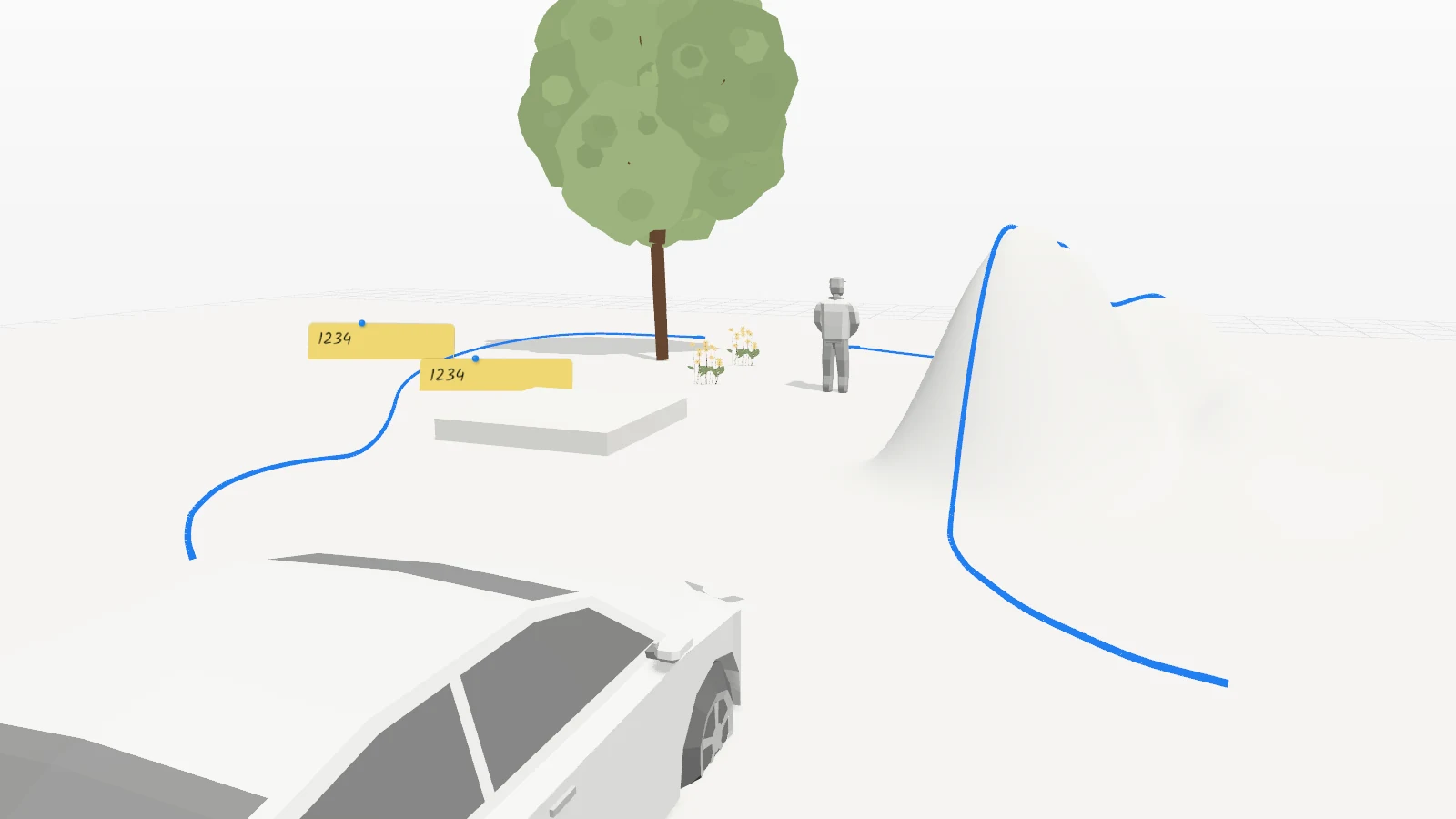
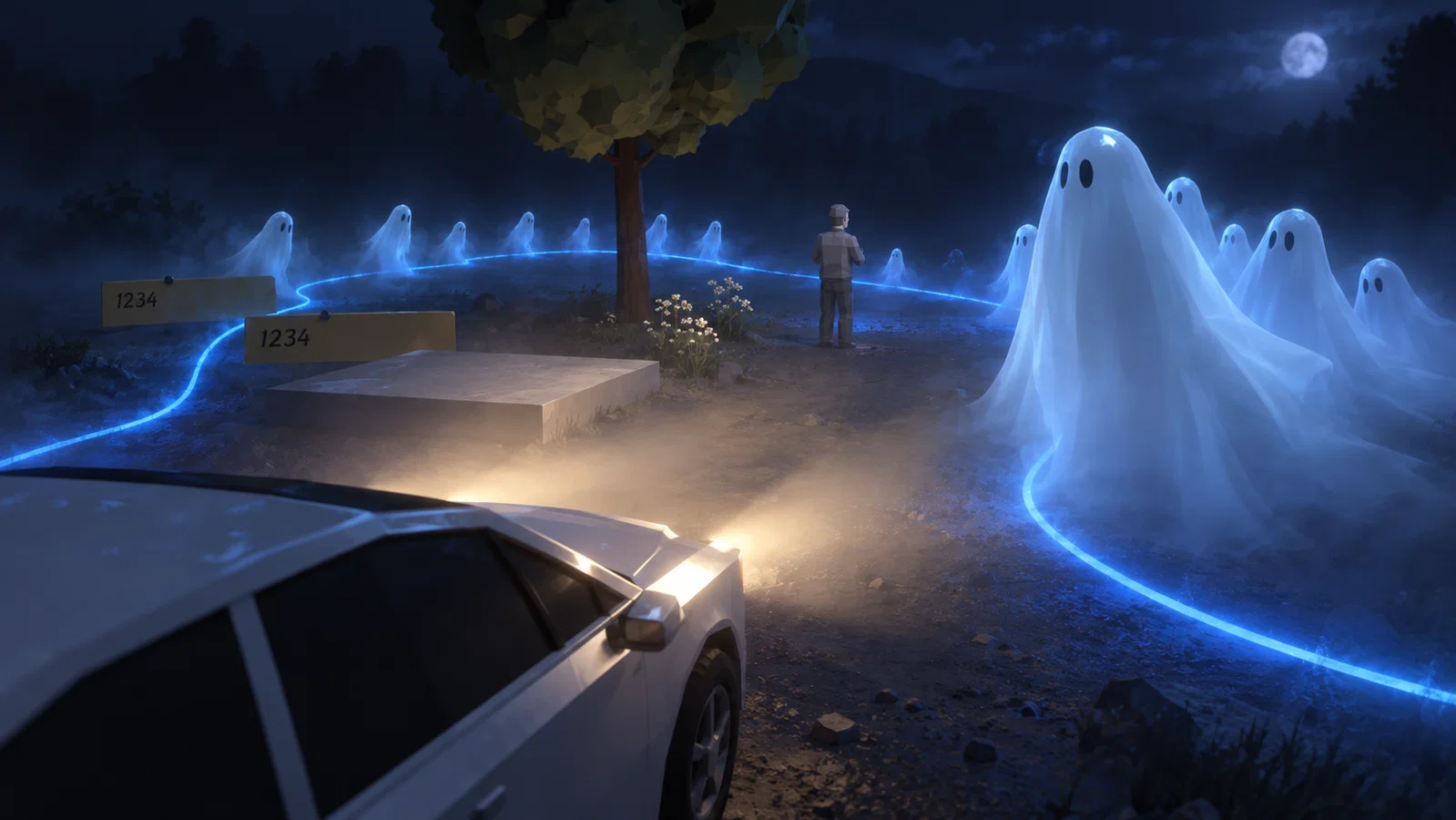
Arrange objects, shape terrain, add reference pictures, and draw paths in a 3D scene. Choose a camera view and write a prompt to generate an image from it.

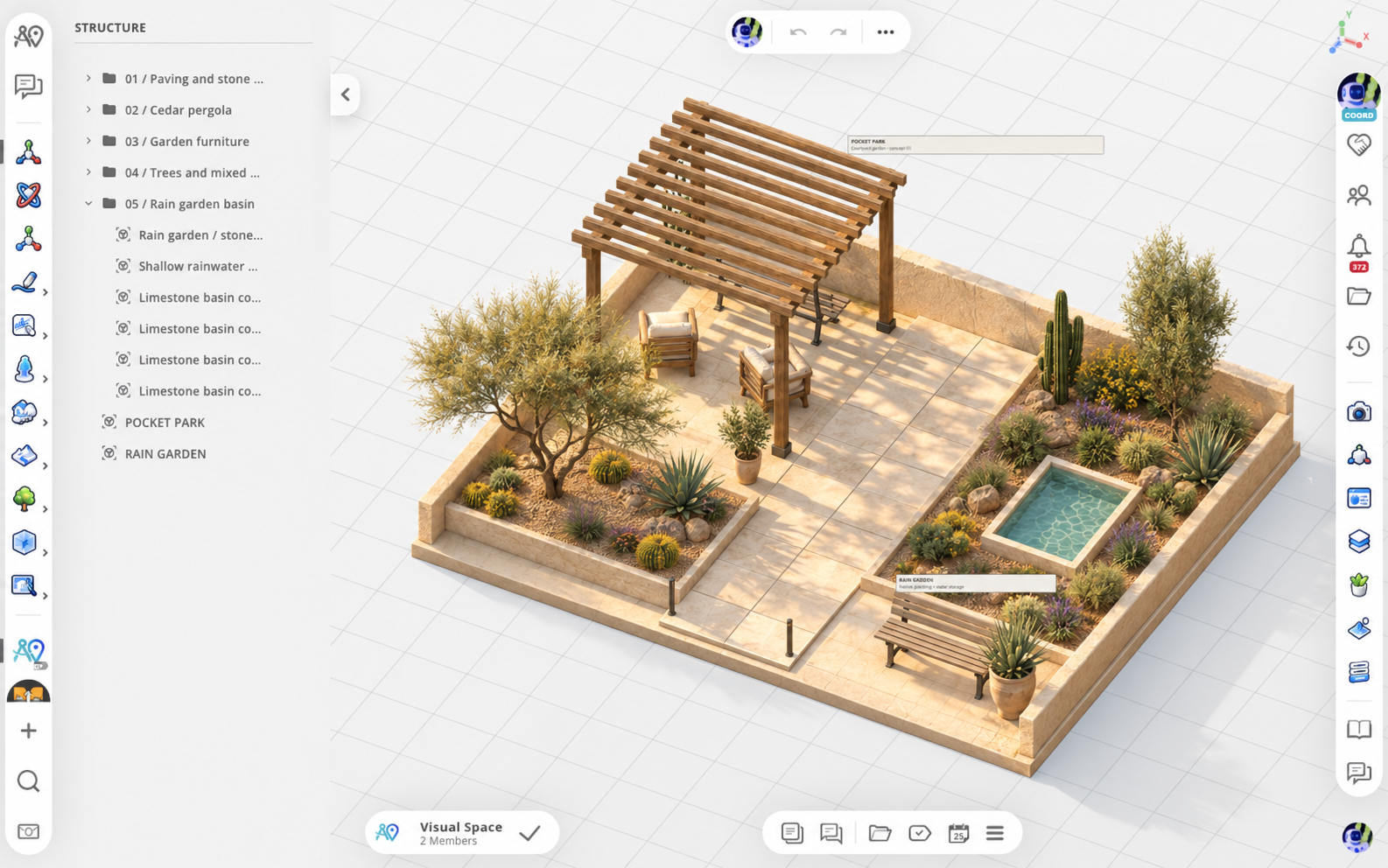
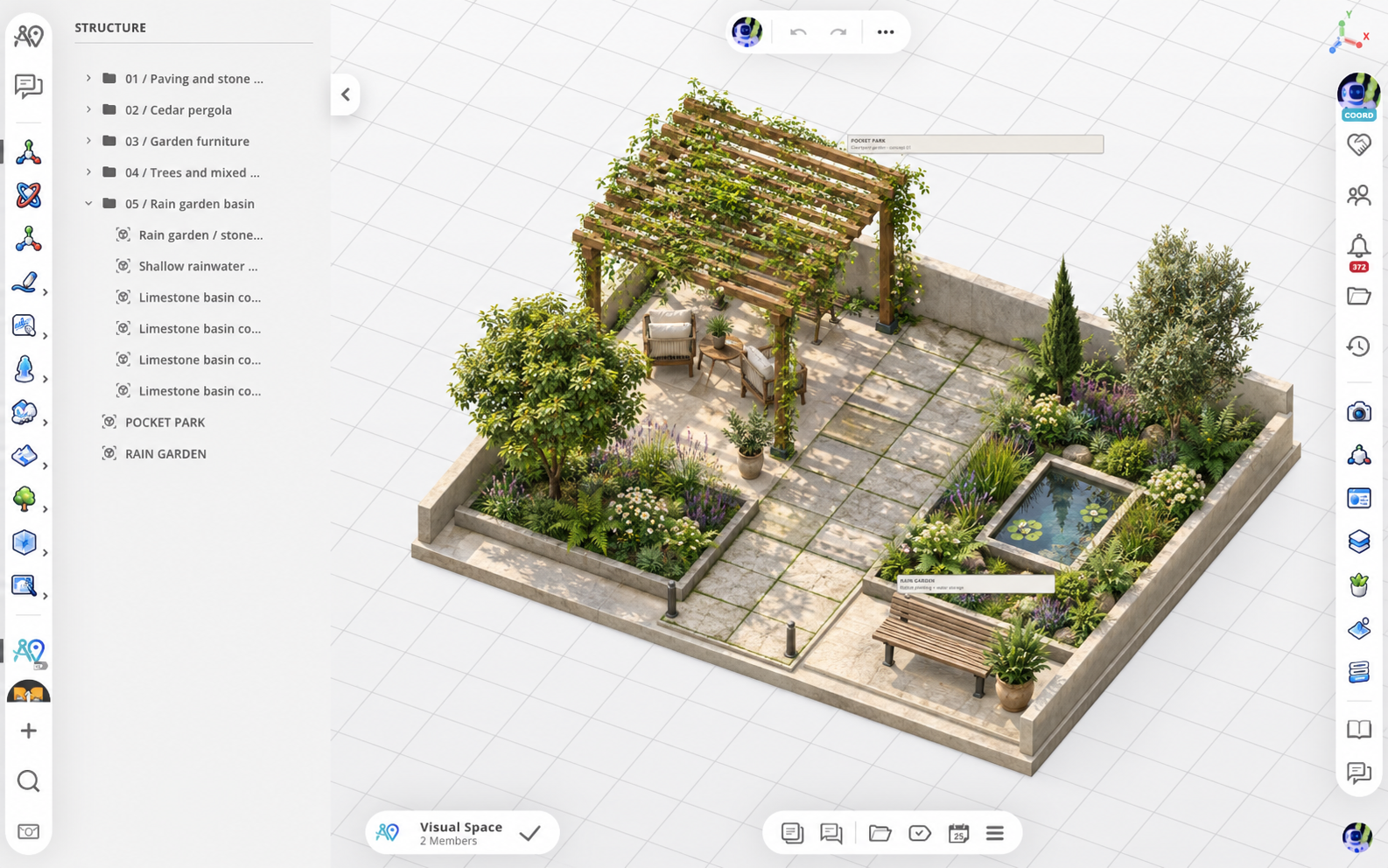
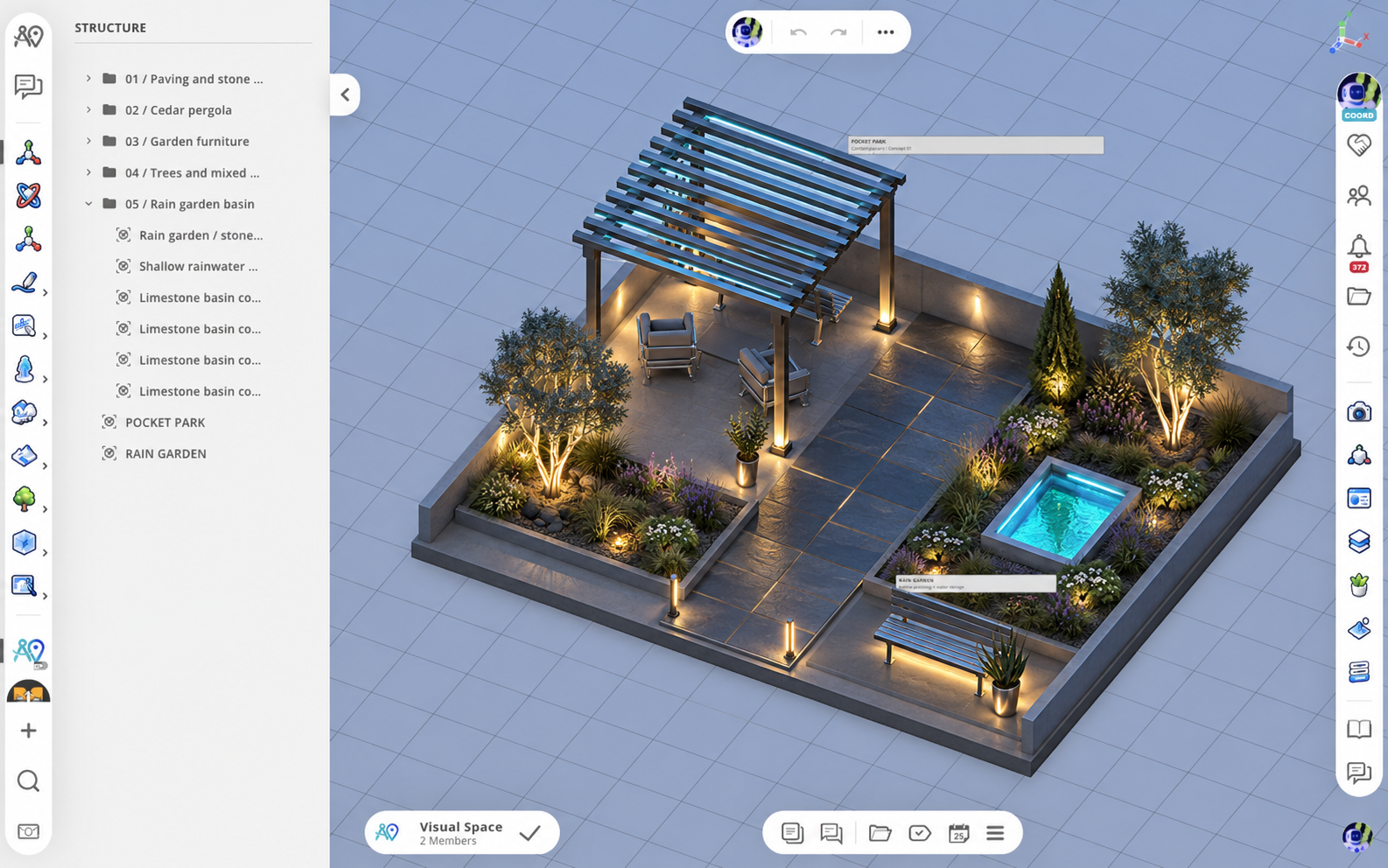
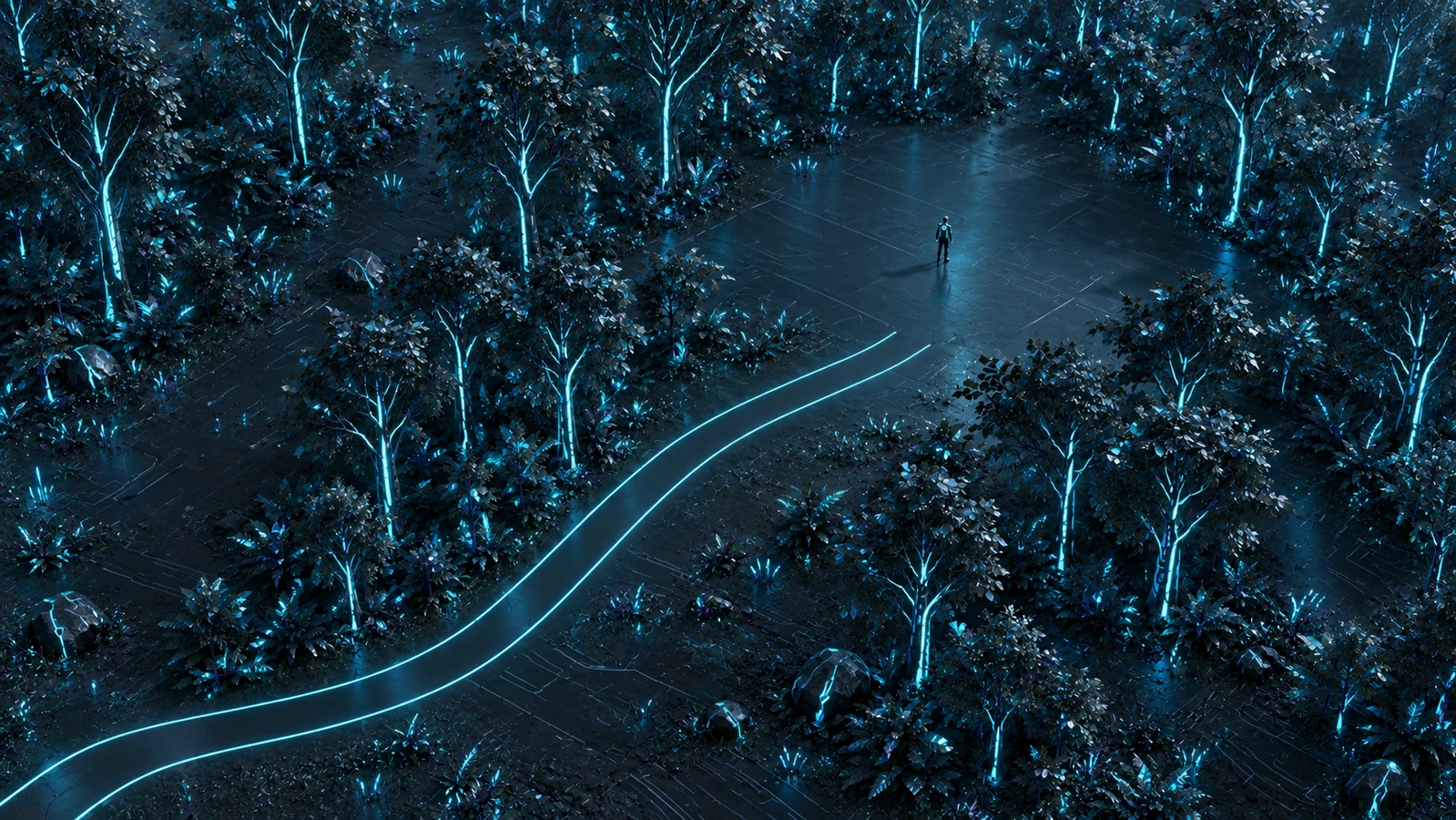
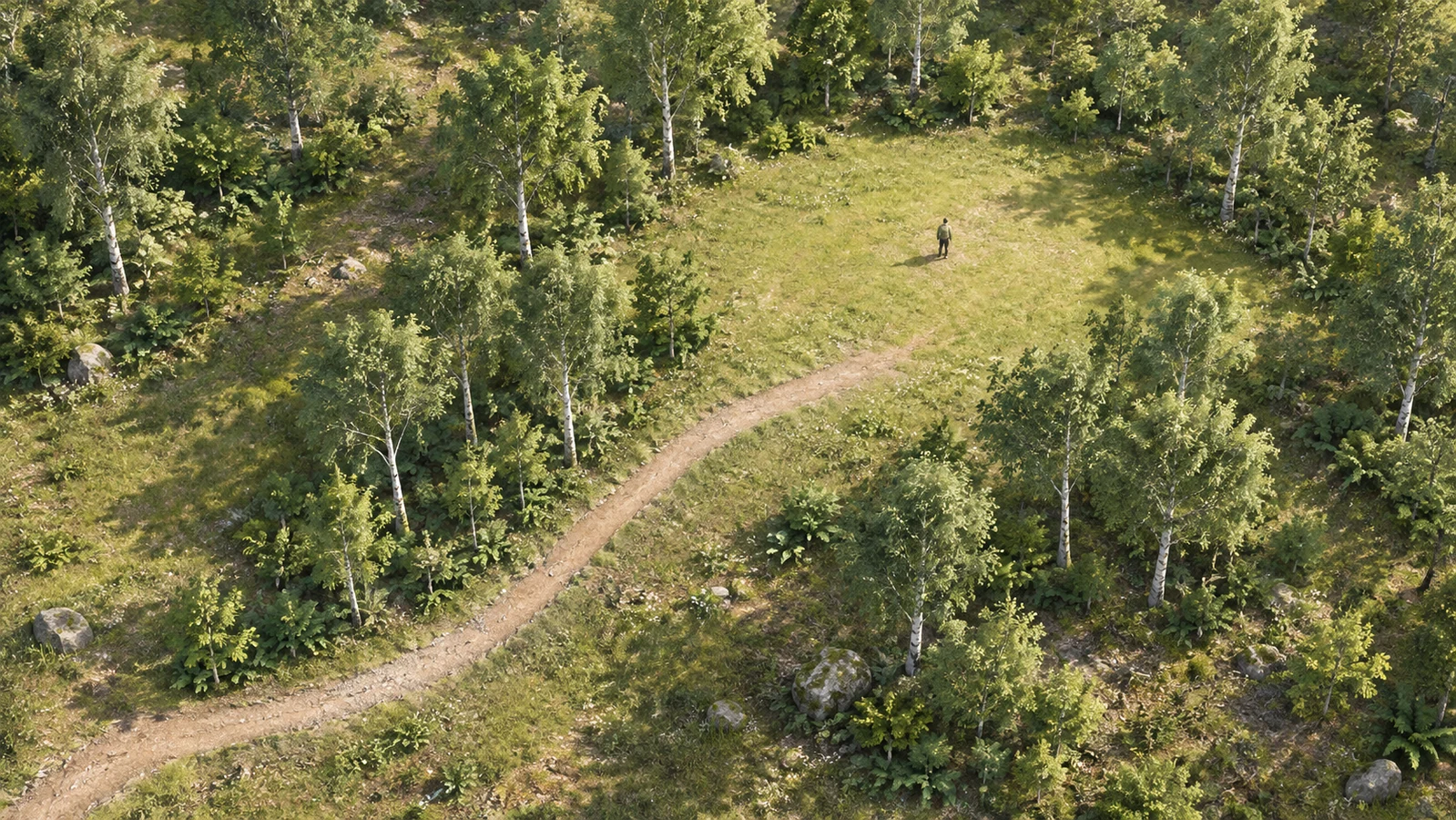
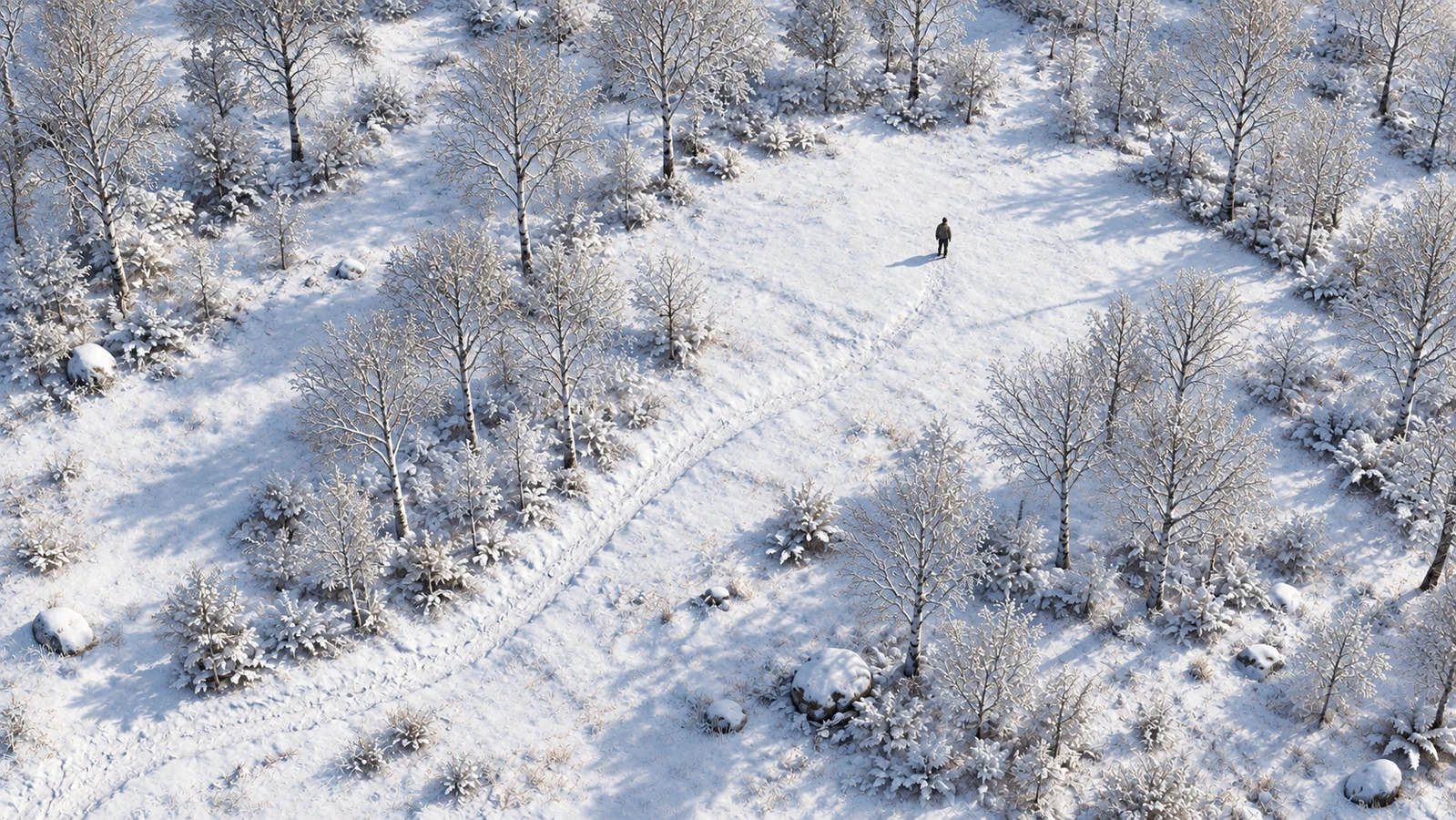
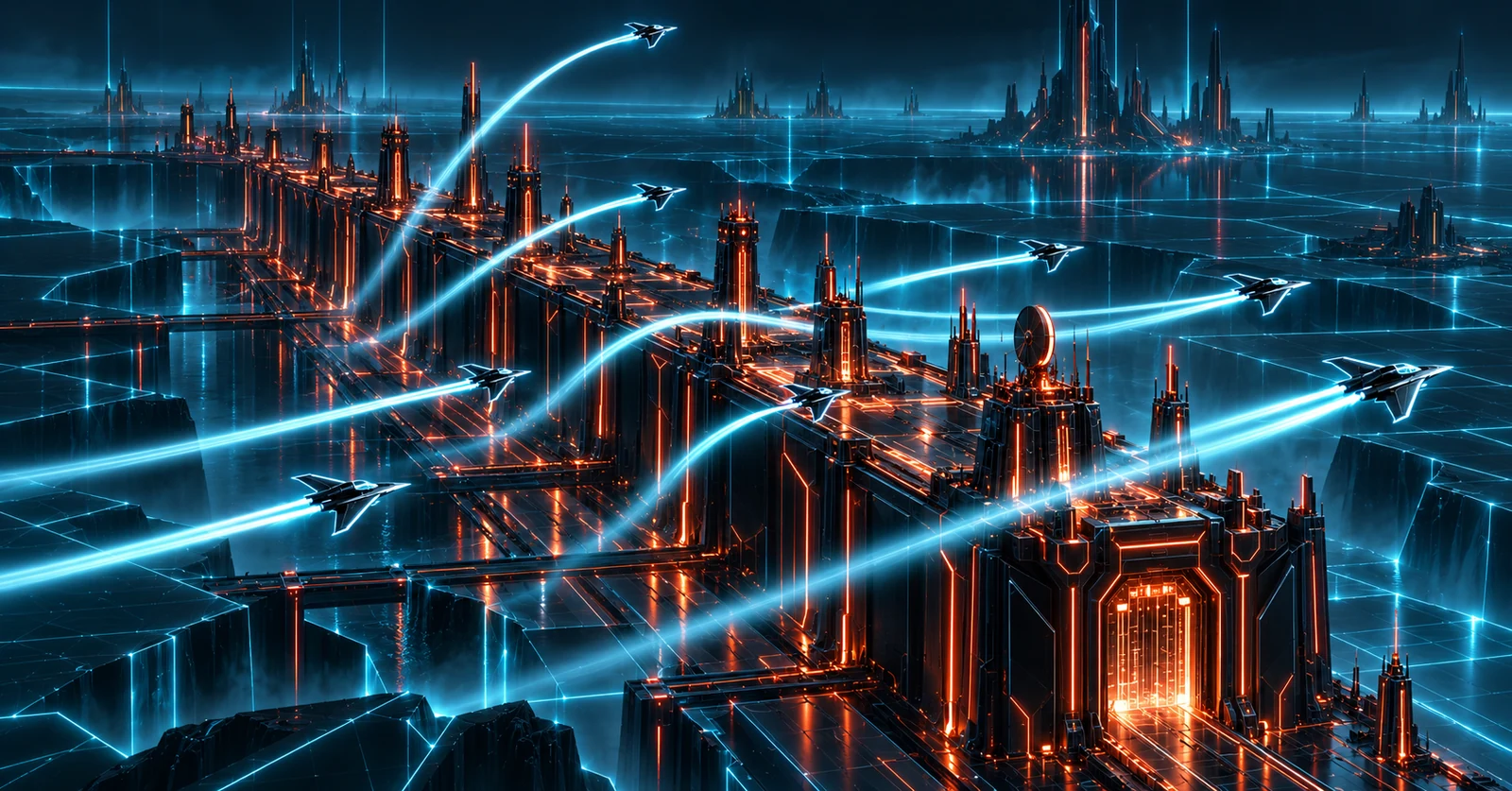
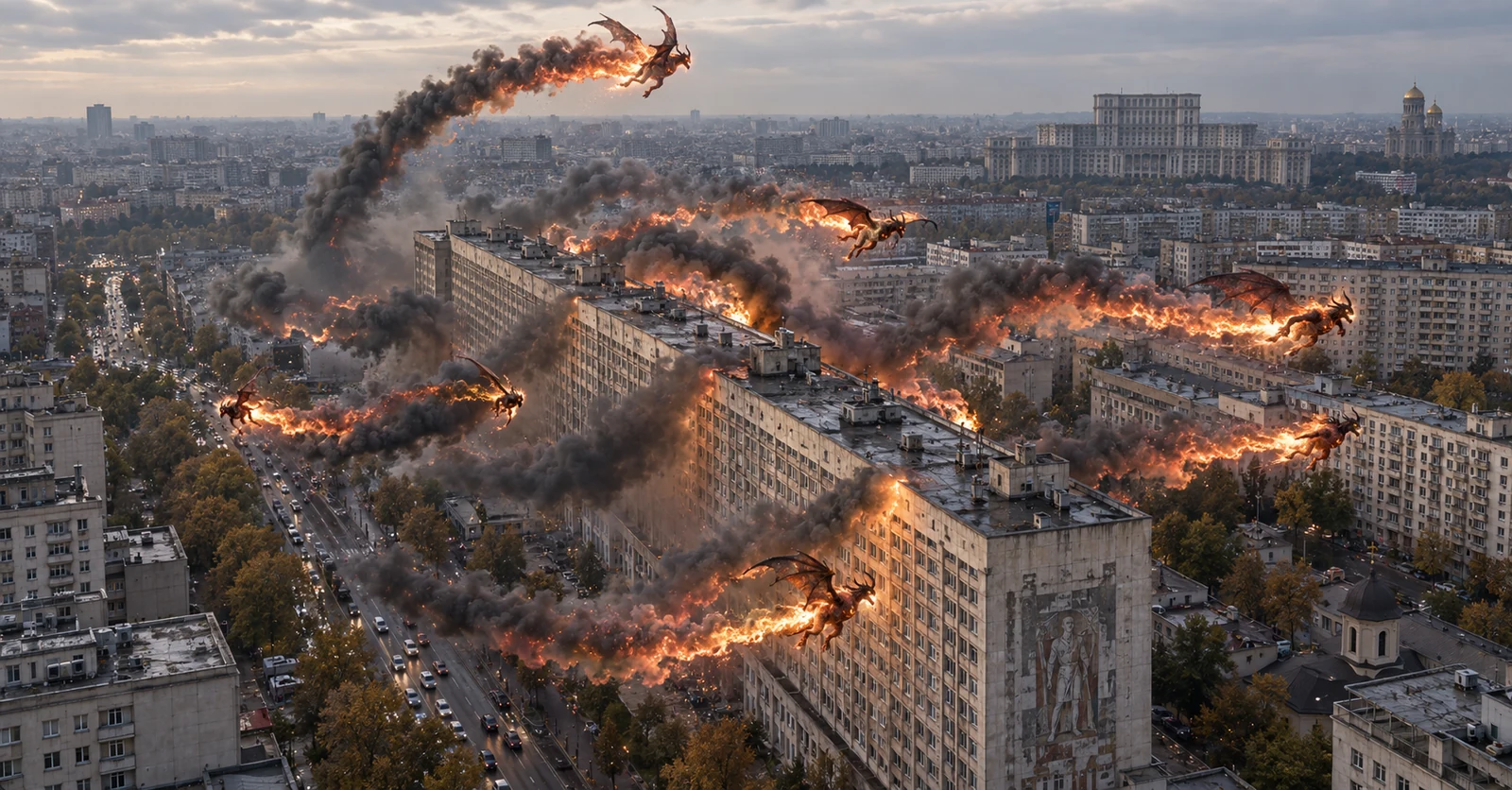
Use the same scene and camera view to generate different settings. These examples show a desert, a sci-fi setting, vegetation, and snow.
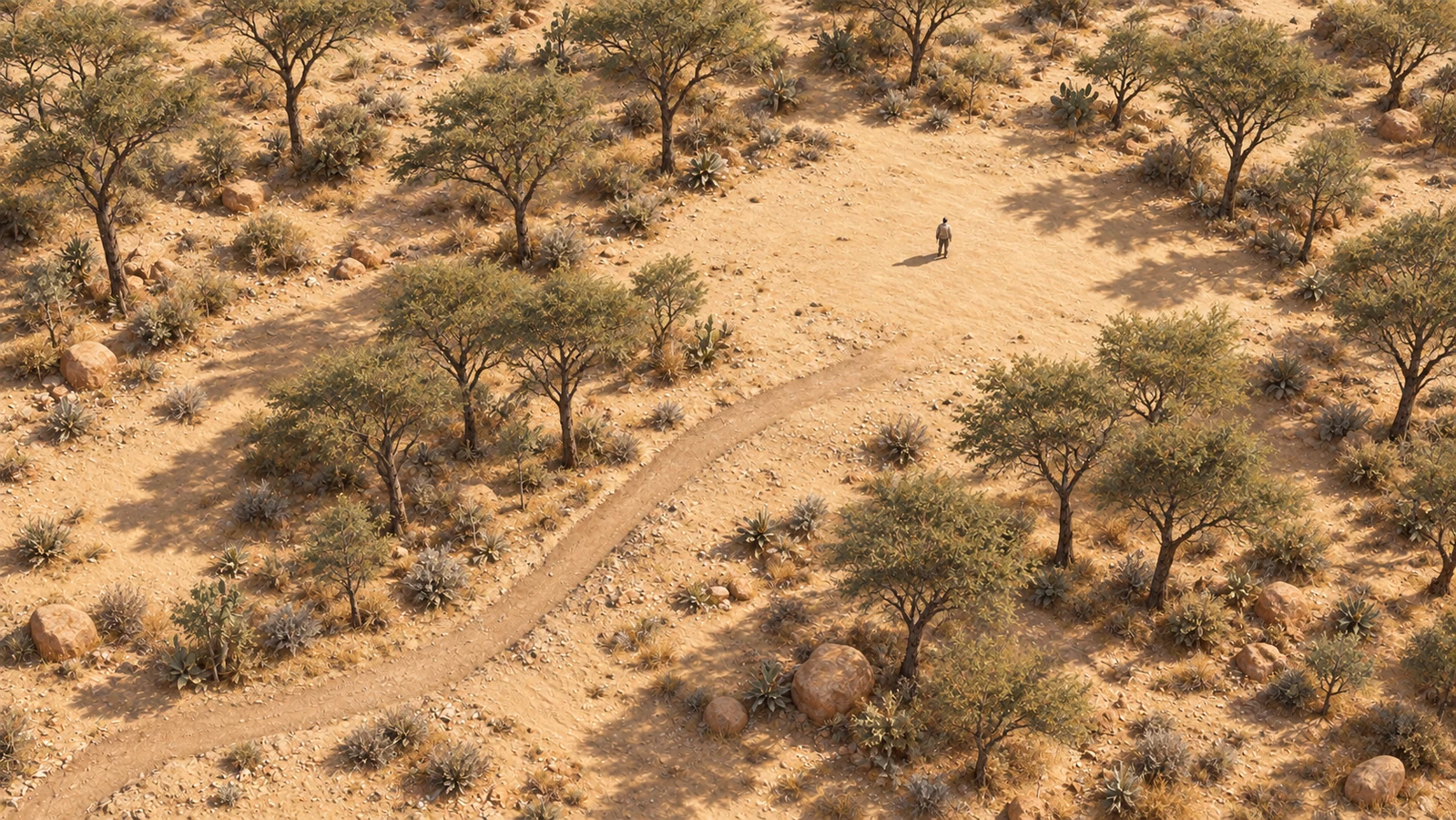
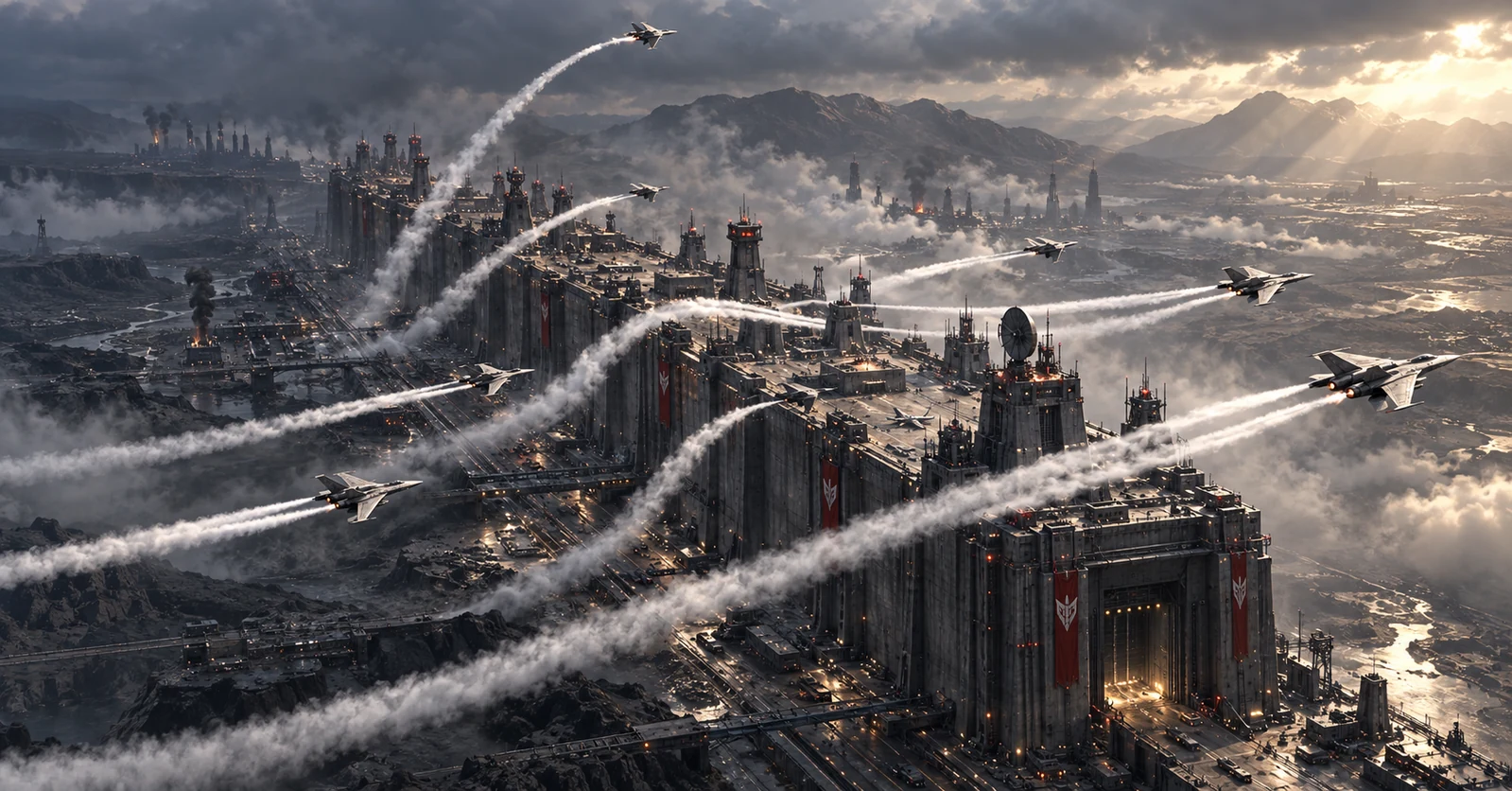
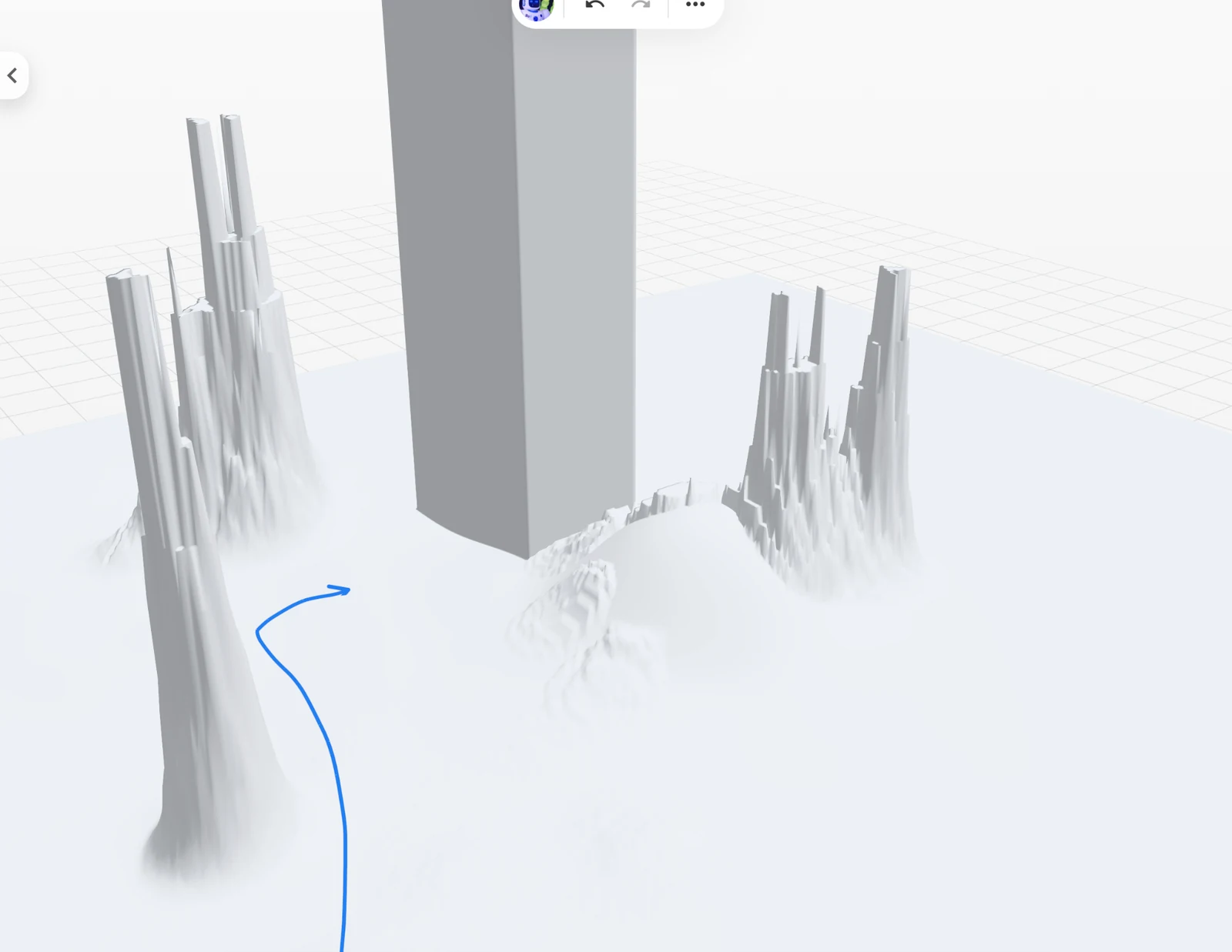
Raise, lower, smooth, or flatten terrain, then add objects to the scene. Use a camera view of that layout to generate a more detailed image.
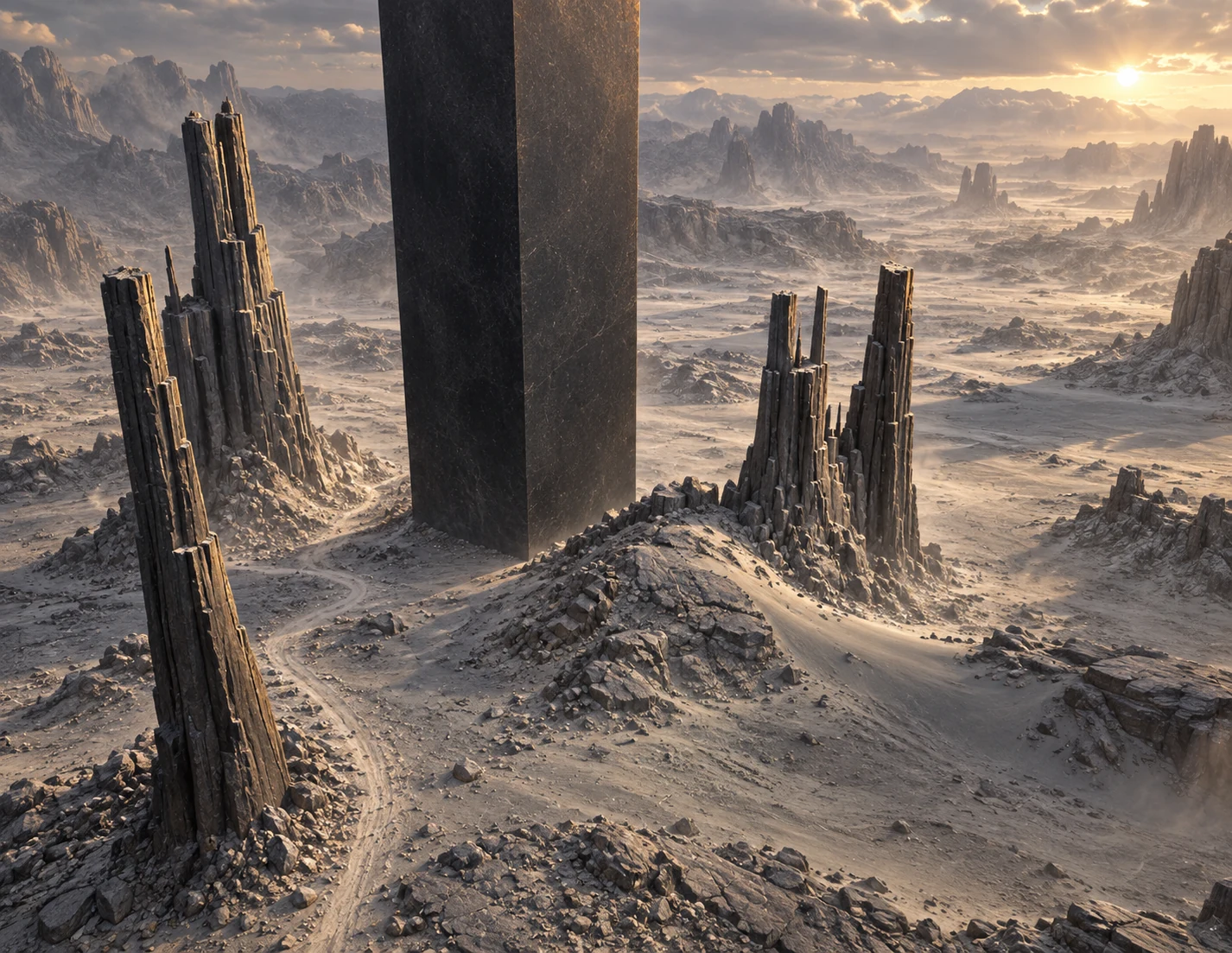
Move the camera without rearranging the scene. Save an overhead view or an eye-level view, then generate an image from either. The examples below use the same objects and paths.
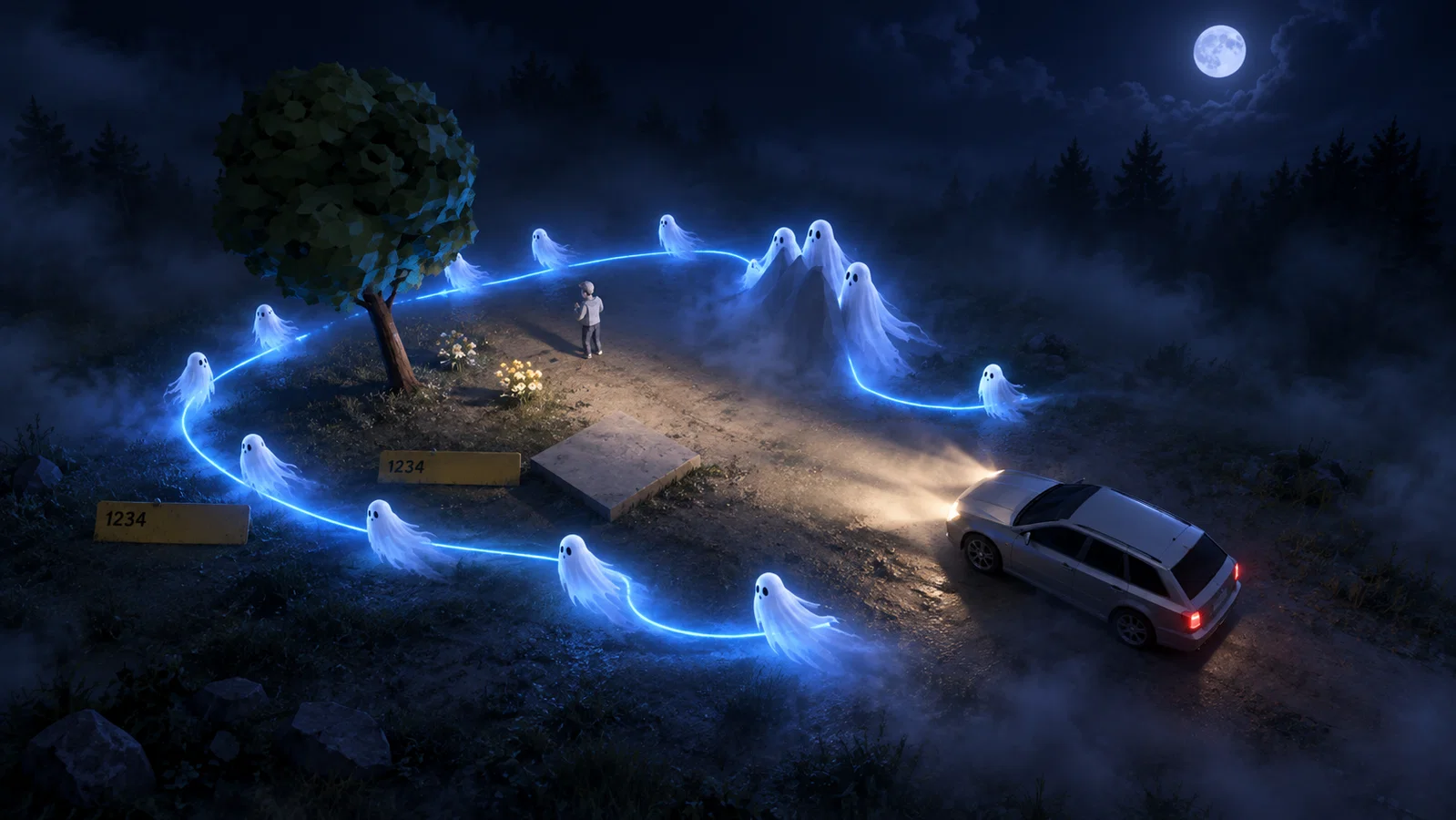
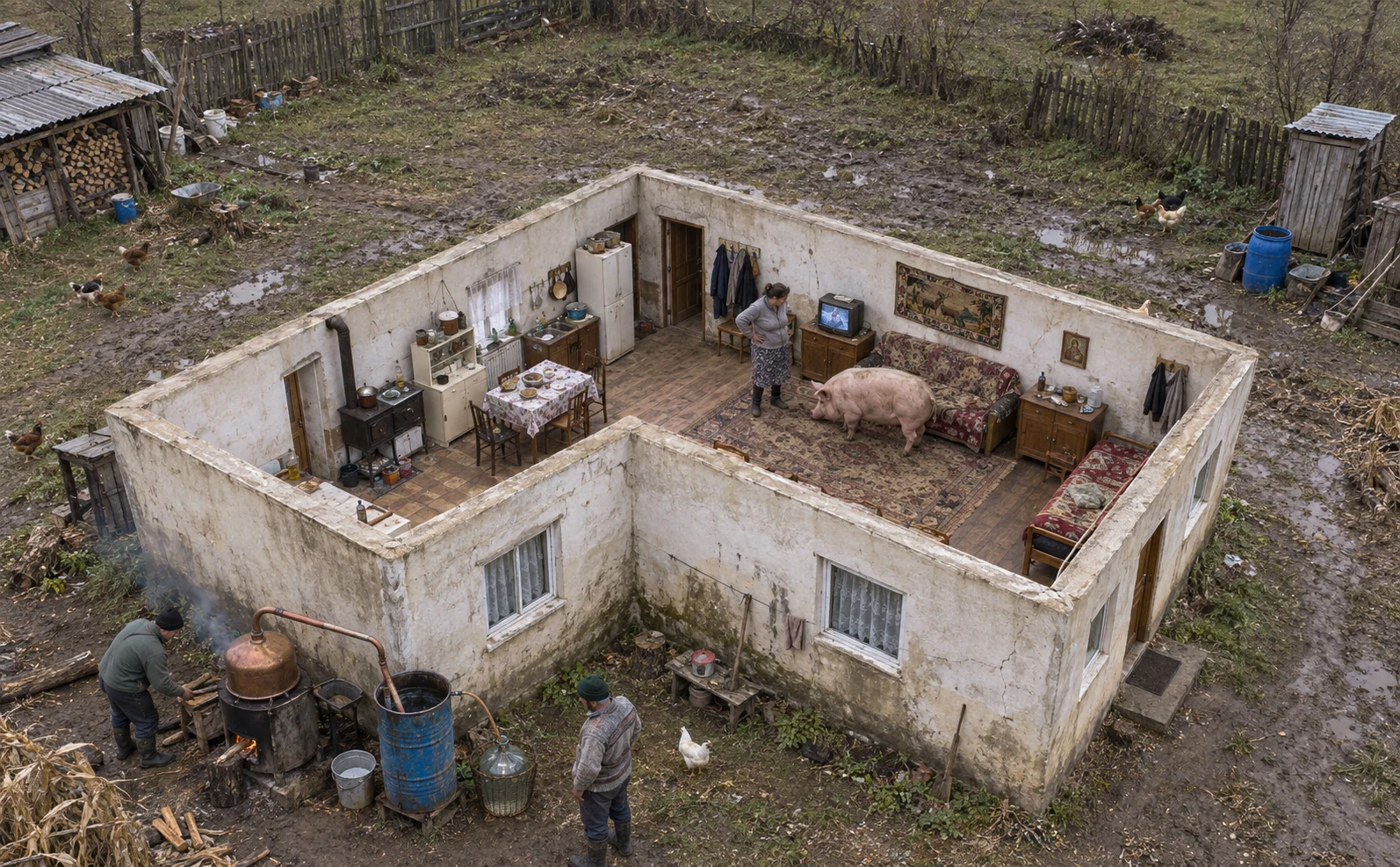
Place a reference picture in the scene, draw a path, and describe the result in your prompt. This example uses a portrait and a curved path to generate a snowy scene with a passing rider.
Save camera views and collect references in Moods for later renders. Generated images are saved in Docs, and the 3D scene remains editable. Rendering requires the scene author, an available Agent, and permission to use the space’s AI credits.
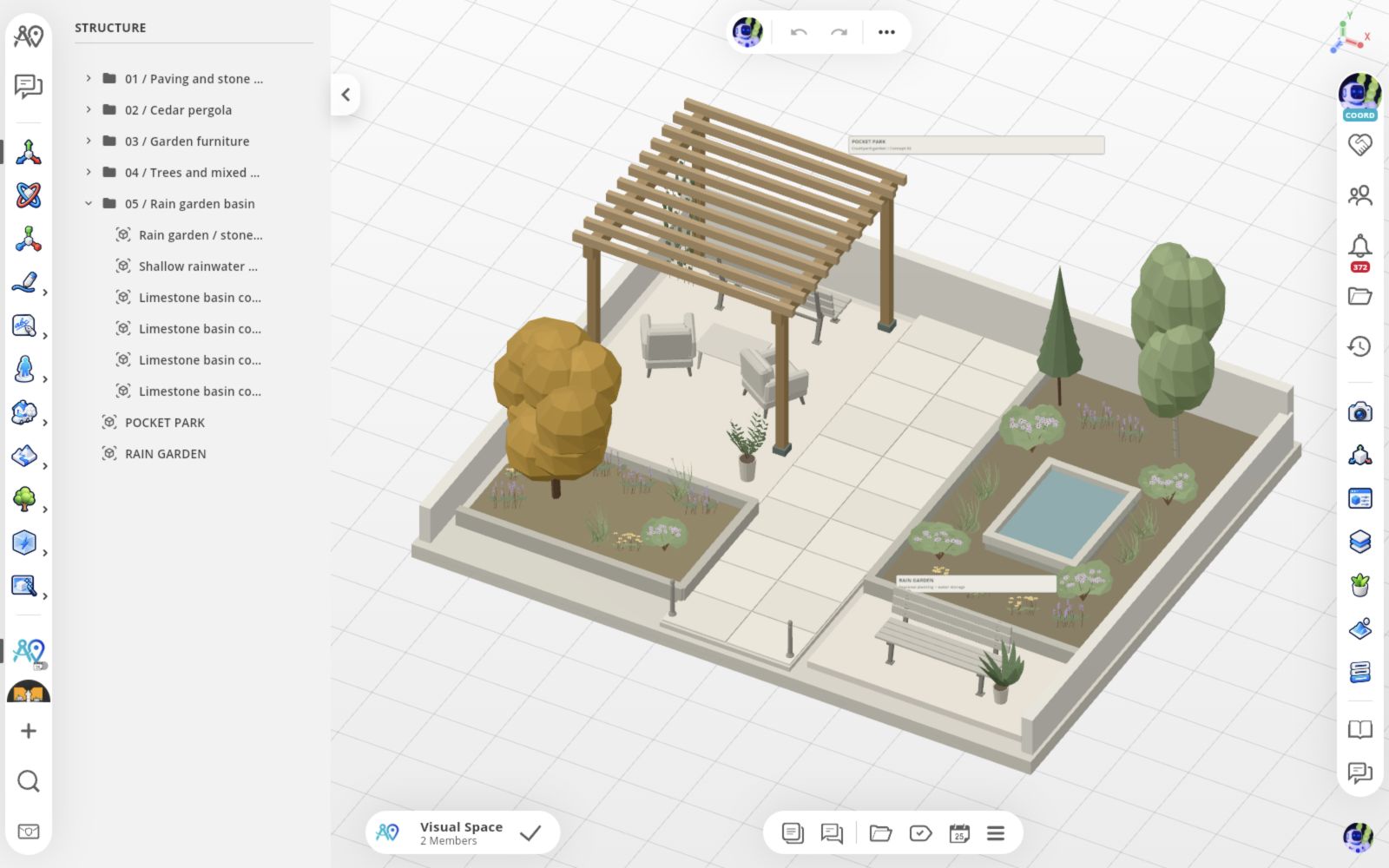
Place and arrange scene objects, shape a landscape, and document an intended experience. Interaction markers describe behavior; they do not run a simulation.
Position the selected scene objects with direct manipulation and supported snapping.

Adjust an object’s orientation to suit the scene.

Change selected object dimensions, then inspect their proportions in the scene.

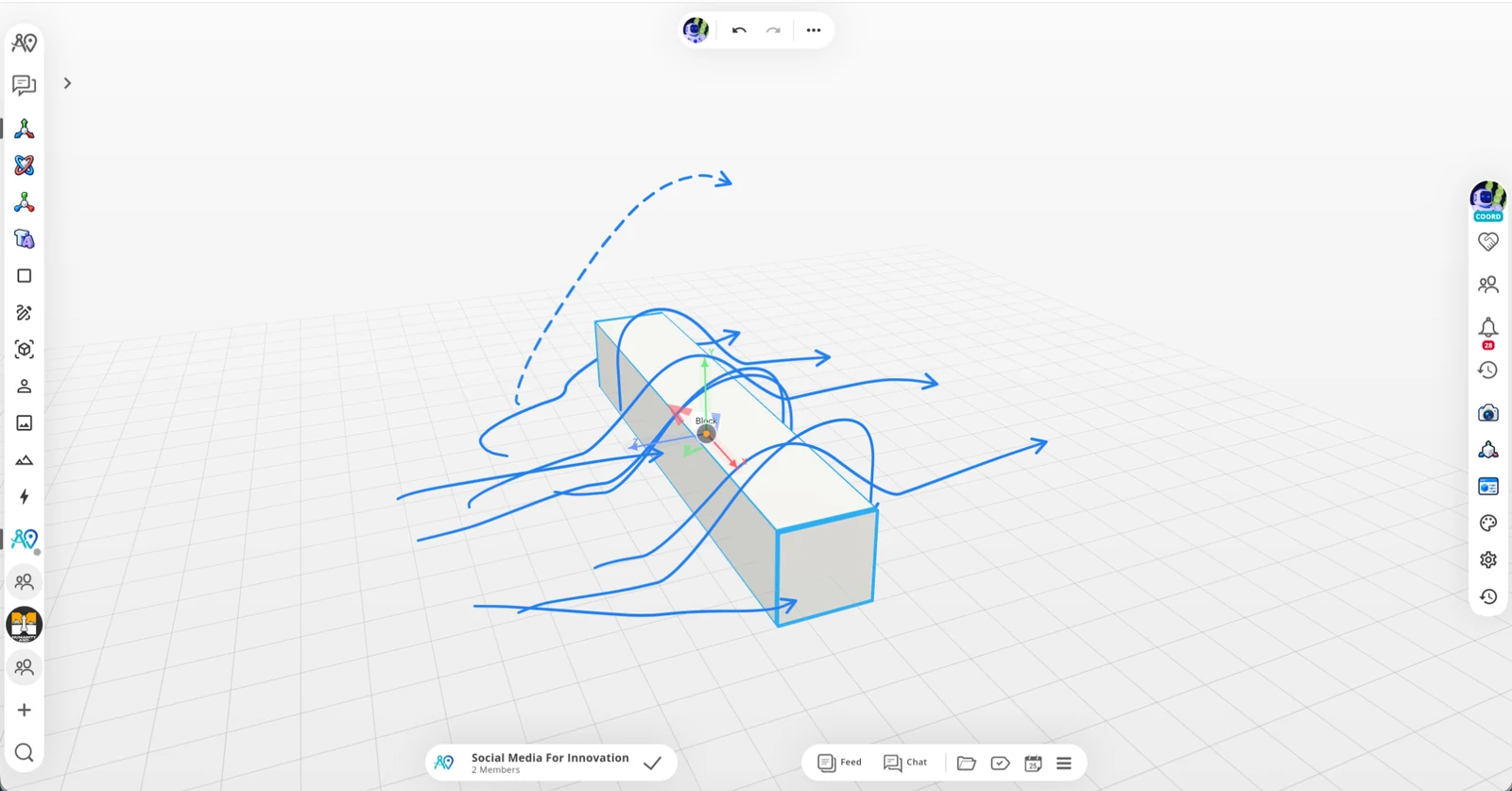
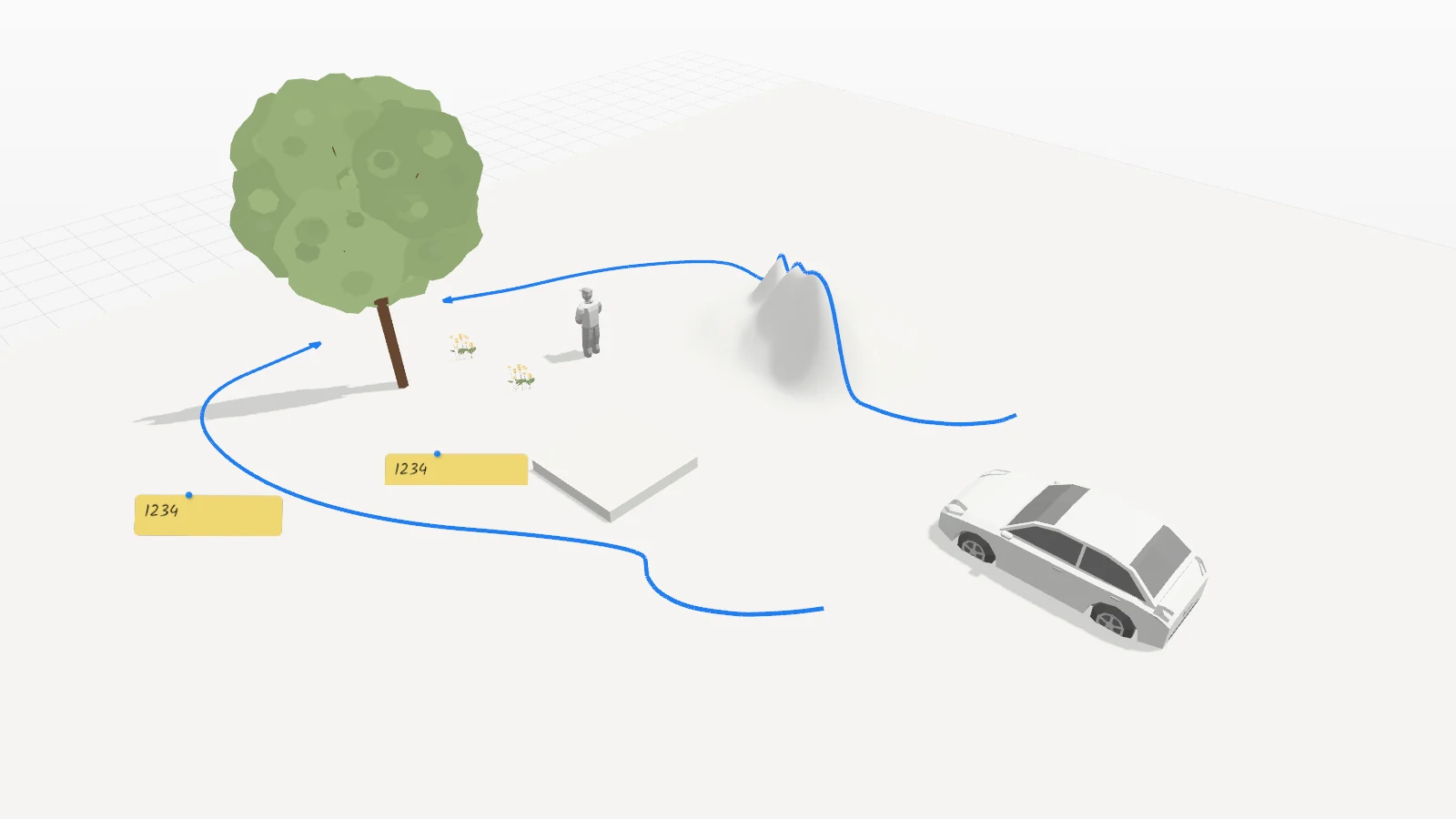
Draw spatial strokes and annotations to explain a path, outline, or design idea.

Place readable notes and picture references in the scene, with their own facing and presentation controls.

Place a flat image-based cutout to give the scene visual context.

Open Shapes, Walls, and the character, vehicle, interior, outdoor, retail, and worksite libraries.
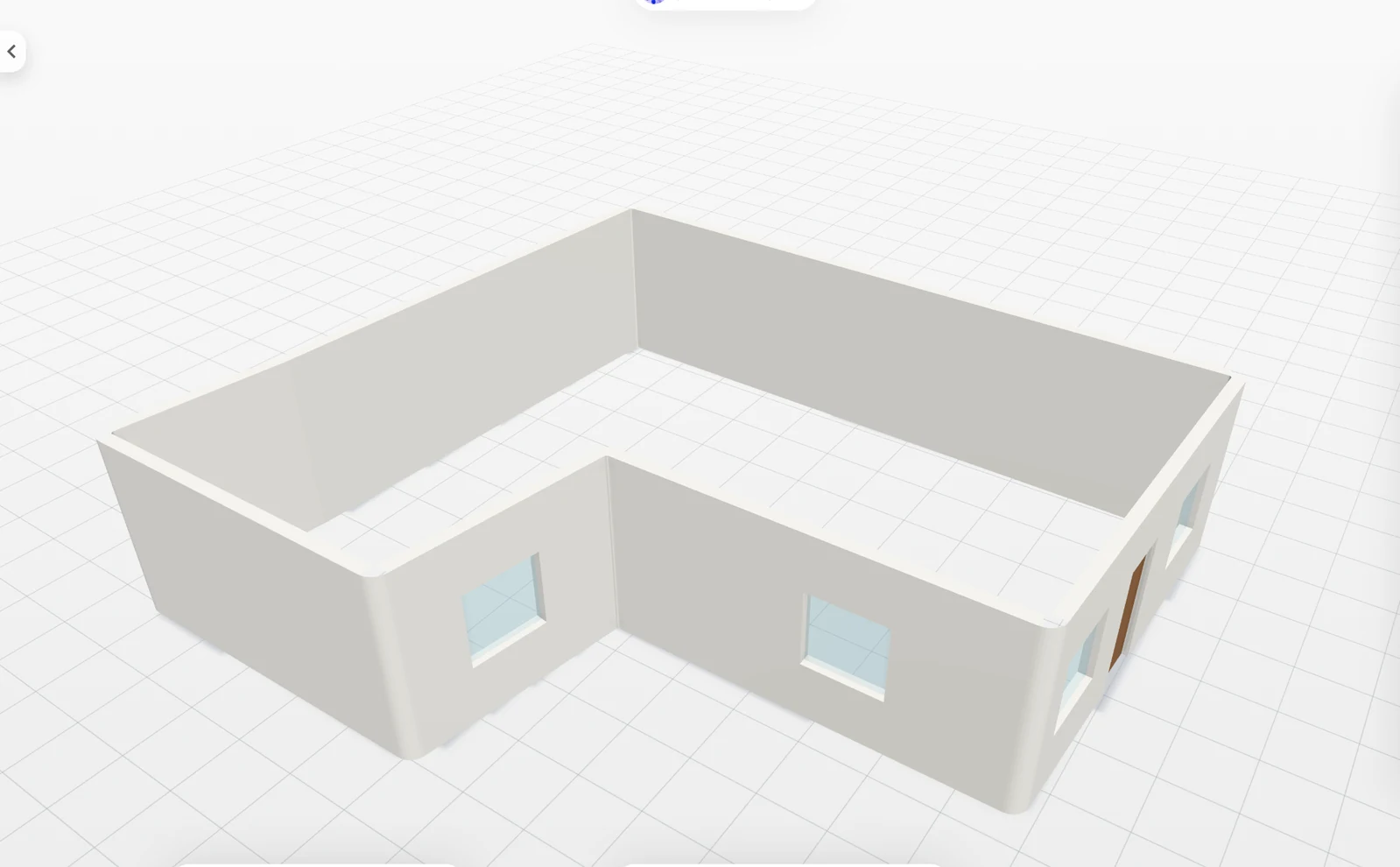
Draw a connected wall run with editable corners, height, and thickness. Closed outlines can include a floor slab and flat roof.

Create an actual opening in a selected wall and adjust its placement.
Add an opening to a selected wall and set its dimensions.

Shape a landscape surface with terrain brushes. Platform terrain also supports a thickness and an underside.

Cut a volume into compatible platform terrain. Inspect the cutting shape or preview the resulting ground.

Place individual plants, scatter a patch, paint density, or fill a surface. Adjust spacing and size variation.

Paint Water, Lava, Energy, or Oil patches. The flow brush sets their visible direction.

Record an intended activation area and its targets. Triggers document behavior; they do not execute it.

Record timing intent for a planned interaction. Stage does not run the timer as a simulation.

Mark where content is intended to appear and describe the plan without spawning simulated actors.

Draw an editable movement route. Objects do not automatically travel along it.

Describe a crowd’s count, spacing, and formation without creating a simulated population.
Record a relationship between two eligible spatial objects. Find it in Structure and Inspector; it has no drawn scene line.
Compare up to three alternative objects or groups. A, B, C, and Compare change their saved visibility.

Keep an ordered list for review and step through it manually with Previous and Next.

Generate an image from the scene and an authored brief. Starting a render requires the scene author and permission to spend the space’s AI credits.

Collect image references and written direction to reuse when preparing a render.

Frame a scene with orbit or first-person navigation, then save useful viewpoints for review.
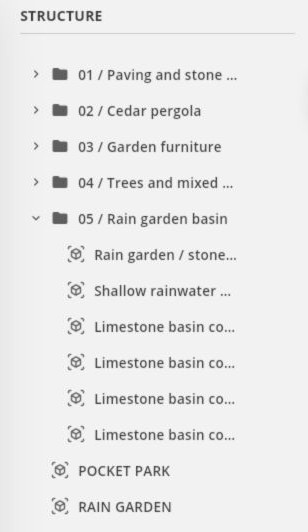
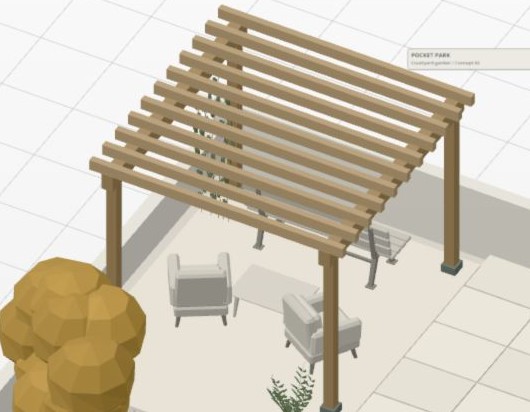
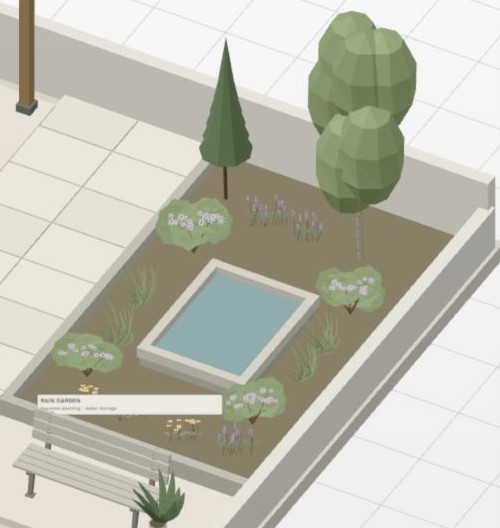
Read the guides and step-by-step tutorials for more detail.
Browse the full manual →